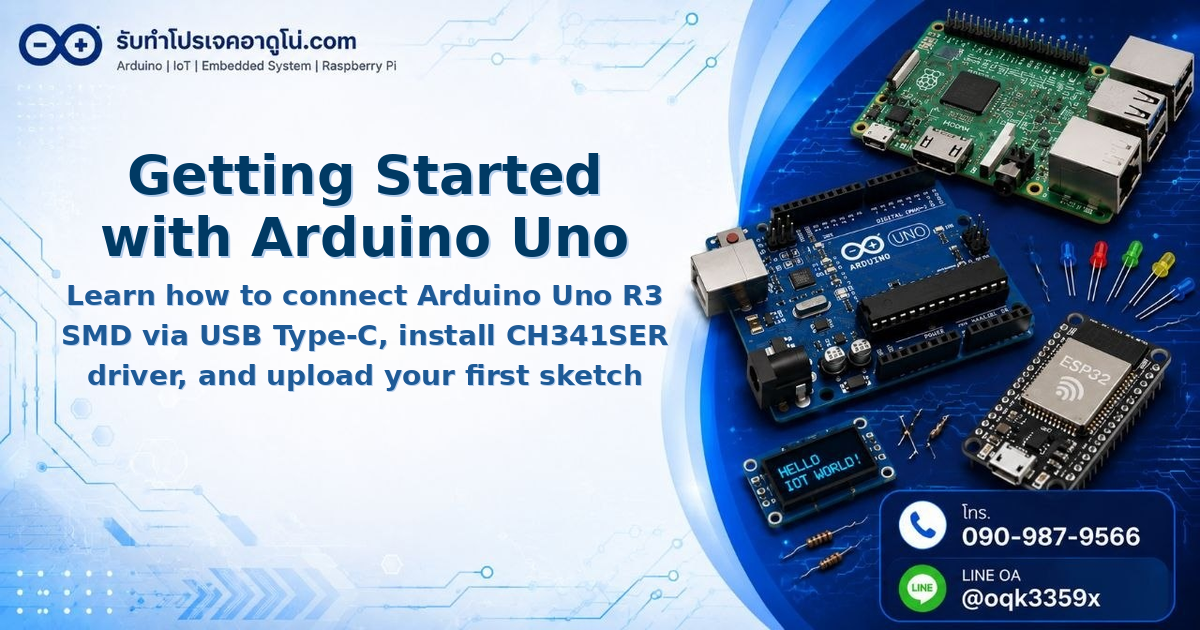
Getting Started with Arduino Uno R3 SMD Using USB Type-C Port
Getting Started with Arduino Uno R3 SMD Using USB Type-C Port
The Arduino Uno R3 SMD is a microcontroller board equipped with a built-in USB Type-C port, making it convenient to connect with modern computers without requiring converters or older USB cables.
Required Equipment
Before getting started, prepare the following items
- Arduino Uno R3 SMD board with USB Type-C port
- USB Type-C cable, 1 meter length, supporting more than 3A current
- Computer with Arduino IDE installed
Optional components for experimentation
- Breadboard with 170 tie points
- Jumper wires: Male-to-Male, Male-to-Female, Female-to-Female, 20cm each, 40 pieces each type

Installing CH341SER Driver
The Arduino Uno R3 SMD board requires CH341SER driver installation before use, as it uses the CH341 USB to Serial chip.
Installation Steps
- Download CH341SER driver from the manufacturer’s website
- Extract the files and run the installer
- Wait for installation to complete
- Connect the USB Type-C cable to the board and computer

Connecting the Board to Computer
- Insert the USB Type-C cable into the USB Type-C port on the Arduino Uno R3 SMD board
- Connect the other end to your computer’s USB port
- Observe that the power LED on the board will light up indicating power supply

Configuring Arduino IDE for Arduino Uno R3 SMD
Selecting the Port
- Open Arduino IDE
- Go to Tools > Port
- Select the port where the board is connected (usually shown as COM followed by a number)
Selecting the Board Type
- Go to Tools > Board > Arduino AVR Boards
- Select Arduino Uno
First Example Code: Blinking LED
This is a basic code for testing the board functionality. The code will make the LED on the board blink every 1 second.
// Blinking LED example for Arduino Uno R3 SMD
// The onboard LED is connected to Digital Pin 13

const int LED_BUILTIN = 13;

void setup() {
  // Initialize the LED_BUILTIN pin as an output
  pinMode(LED_BUILTIN, OUTPUT);
}

void loop() {
  // Turn the LED on (HIGH)
  digitalWrite(LED_BUILTIN, HIGH);

  // Wait for 1000 milliseconds (1 second)
  delay(1000);

  // Turn the LED off (LOW)
  digitalWrite(LED_BUILTIN, LOW);

  // Wait for 1000 milliseconds (1 second)
  delay(1000);
}
How to Upload the Code
- Copy the code above and paste it into Arduino IDE
- Press the Upload button (right arrow icon) or press Ctrl+U
- If this is a new project, the system will ask you to save the project folder first
- Wait for the upload to complete, which takes about 10-30 seconds
- Upon successful upload, you will see “Upload complete” message at the bottom of the window
What to Observe After Successful Upload
- The green LED on the board will blink in 1-second intervals
- The Power LED will remain lit constantly, indicating the board is receiving proper power
- If you encounter errors, double-check the Port selection and board type settings
Reference Video
Summary
Getting started with Arduino Uno R3 SMD through USB Type-C port involves 3 main steps: installing CH341SER driver, connecting the board to the computer, and uploading code via Arduino IDE. Once all steps are completed, the board is ready for your next project.
อยากทำโปรเจคแบบนี้?
รับทำโปรเจค Arduino / IoT จบงานไว ส่งงานครบ พร้อมสอน
If you need Arduino project service or urgent IoT development, see full service details on the home page
จ้างทำโปรเจคเลย