About This
Okay, I get it. You are probably tired of ads all the time. But did you know that you can transform your pi into a network wide ad blocker?
Installing Software
You can install the software by utilitizing the following command:
curl -sSL https://install.pi-hole.net | bash
Make sure not to click on the link! The pi-hole installer will prompt you to steps. Use arrow keys to select and the space bar to select. I just recommend that you keep the recommended or default options. When it asks for an Upstream DNS Provider, I recomend Cloudflare or Google as there are the most reliable DNS provider's.
You might also be prompted to a password. Write that down, it is important.
Setting it up on your network
Now, go to your router's admin portal. Go to anything that mentions DHCP or DNS. Screenshot:
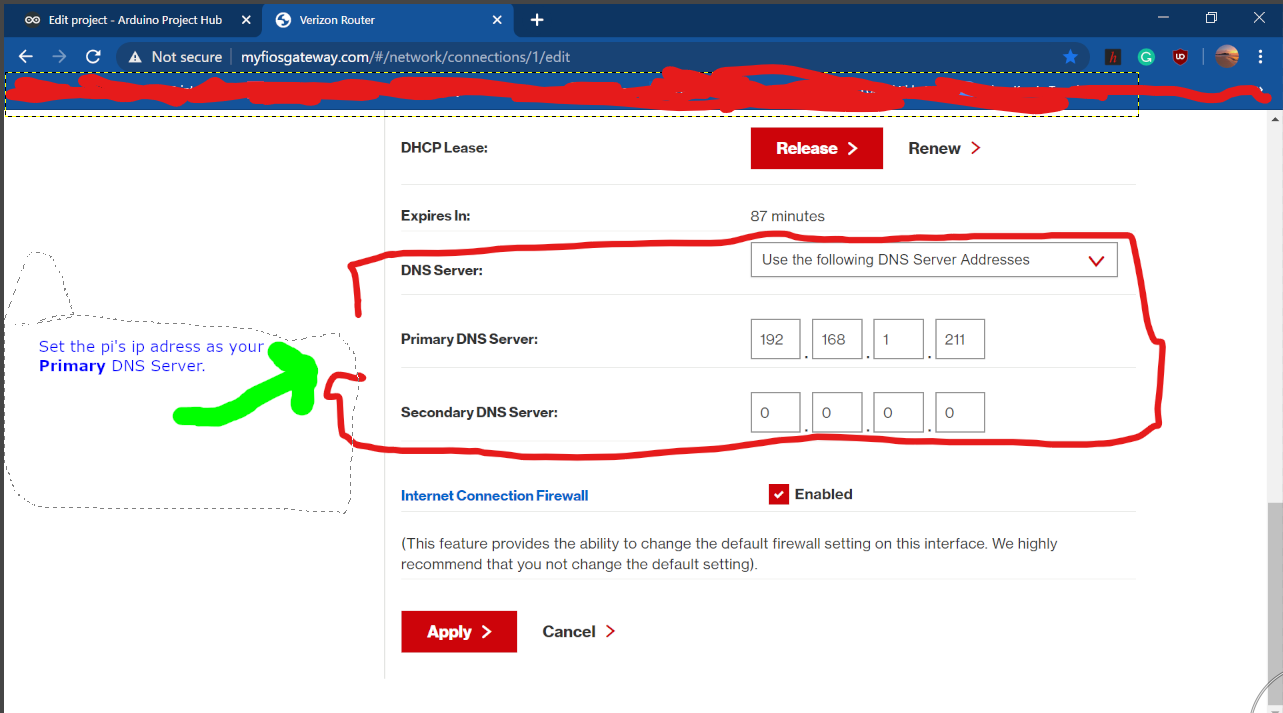
Now you've got the DNS rolling, lets move into the admin. page
Admin. commands
This site: (replace the question marks with the pi's ip.)
???.???.?.???/admin
You will be greeted with a screen. It won't show real information now. Start by clicking login. Enter the password you obtained in the first step. If you forgot your password, set a new one with the command:
sudo pihole -a -p
You will be in front of a screen like the previous one just with much more commands. Next, I will show you some of the commands you can give to the pi.
- Query Log – The query log shows all the most recent queries that have been made to the DNS server. It is an easy way to find a recent address that may have been loaded and blacklist them.
- Whitelist – This screen allows you to add certain domain names to Pi-hole’s whitelist. This whitelist means those websites will no longer be blocked by the DNS server. However, if that domain is blocked by a wildcard, then it will continue to be blocked.
- Blacklist – This screen allows you to add certain domain names into Pi-hole’s blacklist, this means those websites will be blocked by the DNS server.
- Disable – These options allow you to temporarily or permanently disable the blocking functionality of Pi-hole, it will continue to function as a normal DNS server while disabled but will no longer block DNS requests.
Tools
- Update Lists -This tool allows you to trigger an update of the ad blocking lists, it is useful for ensuring you are running the latest versions of the ad block lists.
- Query Adlists – This tool allows you to find out if a certain URL is being included in the ad blocking lists, it is useful for checking why a certain URL might be getting blocked.
- Tail pihole.log – This tool shows the last lines of the pihole.log file and continually updates live, this is useful for checking to see what Pi-hole is doing to requests.
- Settings – This section contains some configurable settings, this allows you to change the way your DNS works, what upstream DNS providers you want to use among several other options. You can even enable DNSSEC in the options.
For the average user, you will not need to change these options unless you made a mistake in the initial installation.
Outra
Since this is my first project with the pi, comment if you have noticed mistakes. Have fun!
EXPANDED TECHNICAL DETAILS
Local DNS Sinkhole Architecture
This project demonstrates how to use an embedded Linux system (like a Raspberry Pi or an Arduino with Raspbian) to block advertisements across an entire network.
- DNS Request Filtering: The system acts as the network's DNS server. Every time a device tries to load an "Ad Server" (e.g., doubleclick.net), the system intercepts the request and returns a "Null" address (0.0.0.0).
- Blacklist Database Hub: Uses a large, locally-stored database of known ad-serving domains. This effectively "blocks" ads within apps, websites, and smart TV interfaces without requiring individual browser extensions.
Performance
- Network-Wide Latency Optimization: By resolving DNS requests locally and bypassing heavy ad trackers, the project can actually improve the overall browsing speed and reduce data usage for everyone on the WiFi.