Step 1: Components
NB: buzzer / piezo buzzer/ sound box/ speaker etc are all the same.
I've used a Speaker from old phone and soldered two wires.
Step 2: Principle: The Physics of the Square Wave
Now we'll be using the Tone function. The foundation of every complex synthesizer, car alarm, and video game arcade cabinet is the simple Square Wave. This tutorial dissects the core C++ logic of the `tone()` syntax, proving exactly how generating sound on an Arduino differs drastically from making an LED blink.
We can use this in two ways,
1. tone(pin-number, freq-in-Hz);Here pin-number is the pin number where the buzzer / speaker pin is connected with arduino. And then we'll have to set a Frequency to make sound. This is pretty basic. To make good sound or something like beep - see this
2. tone(pin-number, freq-in-Hz, delay);As you can see I've added a delay in here so the sound will be continued for certain delay you set.
Now Arduino will keep making sound till that certain delay. For example if I set it something like this
tone(pin-number, 1000, 100);It'll make sound of 1000 Hz for 100 miliseconds. The best thing is to give it a try and to see which freq. is suited for your project. See my video- (just intro)
EXPANDED TECHNICAL DETAILS: The Hardware Execution (`Timer2`)
You cannot just say: `make_music_now()`. You must mathematically define exactly how fast a physical pin vibrates using Hertz (`Hz`).
- Human hearing generally stretches from `20Hz` up to `20,000Hz`.
- The `tone(pin, frequency)` function forces the Arduino's 16MHz clock to seize absolute control of Hardware Timer 2.
- The Physics Factor: If you write `tone(8, 440);`, the processor violently snaps Digital Pin 8 between `5V` (HIGH) and `0V` (LOW) exactly 440 times per second!
- The Piezo Buzzer crystal physically bends 440 times per second, displacing the air molecules exactly replicating the musical note 'A4' on a piano!
The `delay()` Lockout and `noTone()` Protocol
The most common execution error in Arduino acoustic logic is forgetting that the `tone()` function acts entirely "In The Background" (Asynchronously).
- If you write:
The piezo will NEVER play the 440 note. The code executes so fast that it instantly overwrites the first command!tone(8, 440); tone(8, 523); // The note C! - The Solution:
tone(8, 440); delay(1000); // Forces the Uno to listen to the note for exactly 1 second! tone(8, 523); delay(1000); - Also, `tone()` NEVER STOPS until you manually tell it! If you don't use `noTone(8);`, the piezoelectric buzzer will mercilessly screech 523Hz off into infinity, completely ruining the workspace until you physically pull the power cable!
Step 3: Build the Simple Circuit:
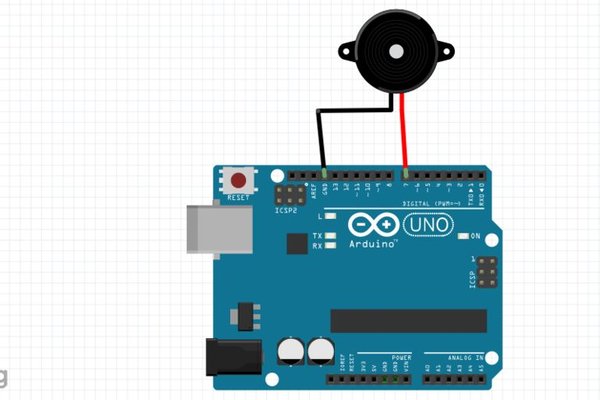
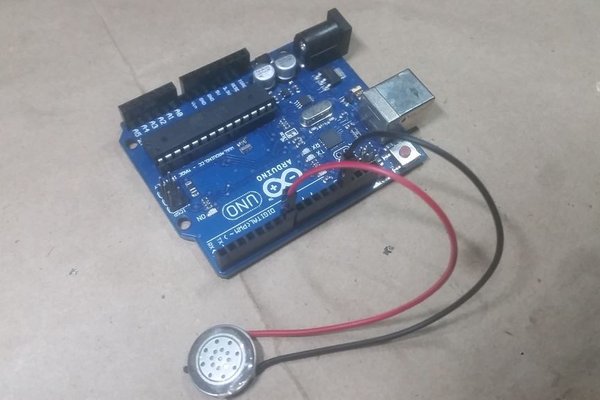
I think there's nothing much to say about this circuit. The reason why I've connected the -
- buzzer / speaker red wire to arduino 7
- buzzer black wire to arduino Gnd
- is simple. You can use any of the digital pins you want.There's nothing exceptional in pin 7. Okay so connect the buzzer pins as said above.
NB: there's no positive (+) or negative (-) in buzzer. any wire can be used as pos. and neg.
Core Acoustic Fundamentals Checklist
- Arduino Uno/Nano (Standard execution speeds).
- Passive Piezoelectric Buzzer (A small black cylinder with 2 pins).
- (Note: Ensure you are using a PASSIVE buzzer. Most starter kits ship with an "Active" buzzer! If you connect an Active buzzer to a battery, it immediately starts making noise on its own. It ignores the `tone()` command completely and only plays one single, terrible note forever!)
- A Jumper Wire and a 100 Ohm Resistor to wire the circuit safely inline.
Step 4: Programming the Arduino
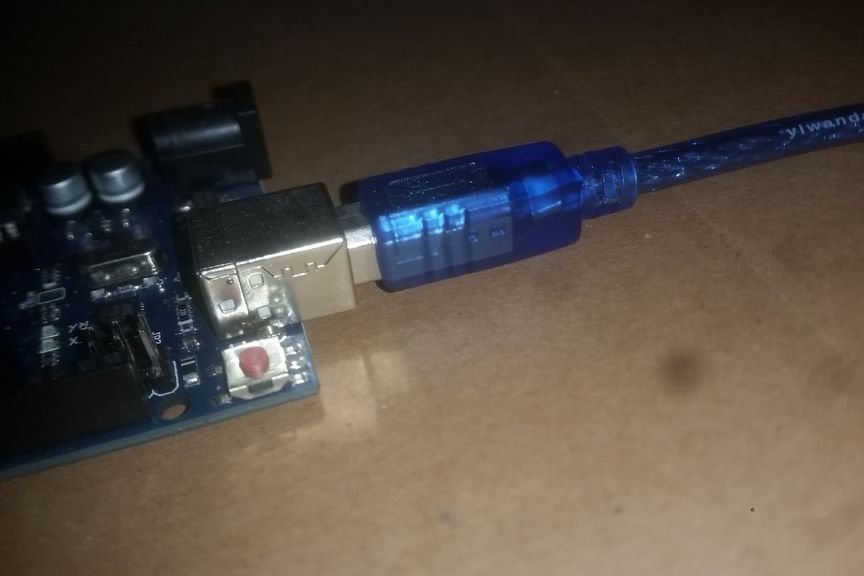
Connect with the USB cable to Arduino and your PC or Phone and upload the code
Download code https://github.com/ashraf-minhaj/Use-of-Tone-Funct...
or copy from here
int buzzer=7; //connecting buzzer to pin 7
void setup()
{
pinMode(buzzer,OUTPUT);  //setting up buzzer pin as output
}
void loop()
{
tone(buzzer,1000,100);  //freq 1000 Hz,delay 100 ms
delay(1000);
tone(buzzer,1000,1000); //freq 1000 Hz,delay 1 sec
delay(100);
}
As you can see I've declared the pin as buzzer so we'll call it the buzzer in tone functions "pin-number". Then declared the pin as OUTPUT. The loop function continues for Ever so it'll keep making sound for ever as long as the Arduino is powered. The frequency is 1000 Hz and delay is 100 ms. Additionally I've added another delay under that. That makes the beep sound with a delay of 1000 ms or 1 second.
Compile the code and upload to Arduino.
Step 5: Finished
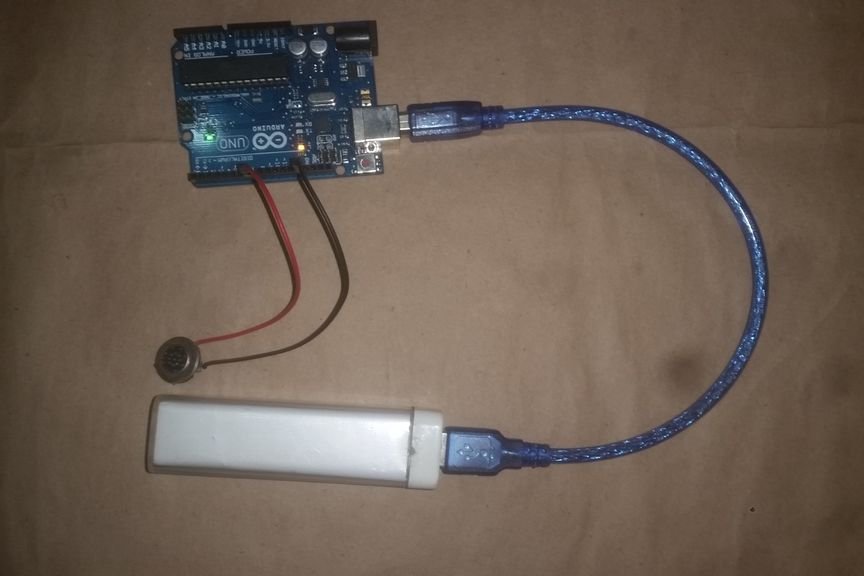
Once the code is successfully uploaded you'll hear Arduino making sound or noise (as you've set). No need to connect to another power source because it can work by the power your PC gives it. I've connected it to a powerbank to power the Arduino.
And you're done. So, by adding just these three or four lines to your code you can make your project talk, though not actually talk but not that bad ha?
Let me know how my Instructable was to you. Thanks.
See my project making sound using arduino