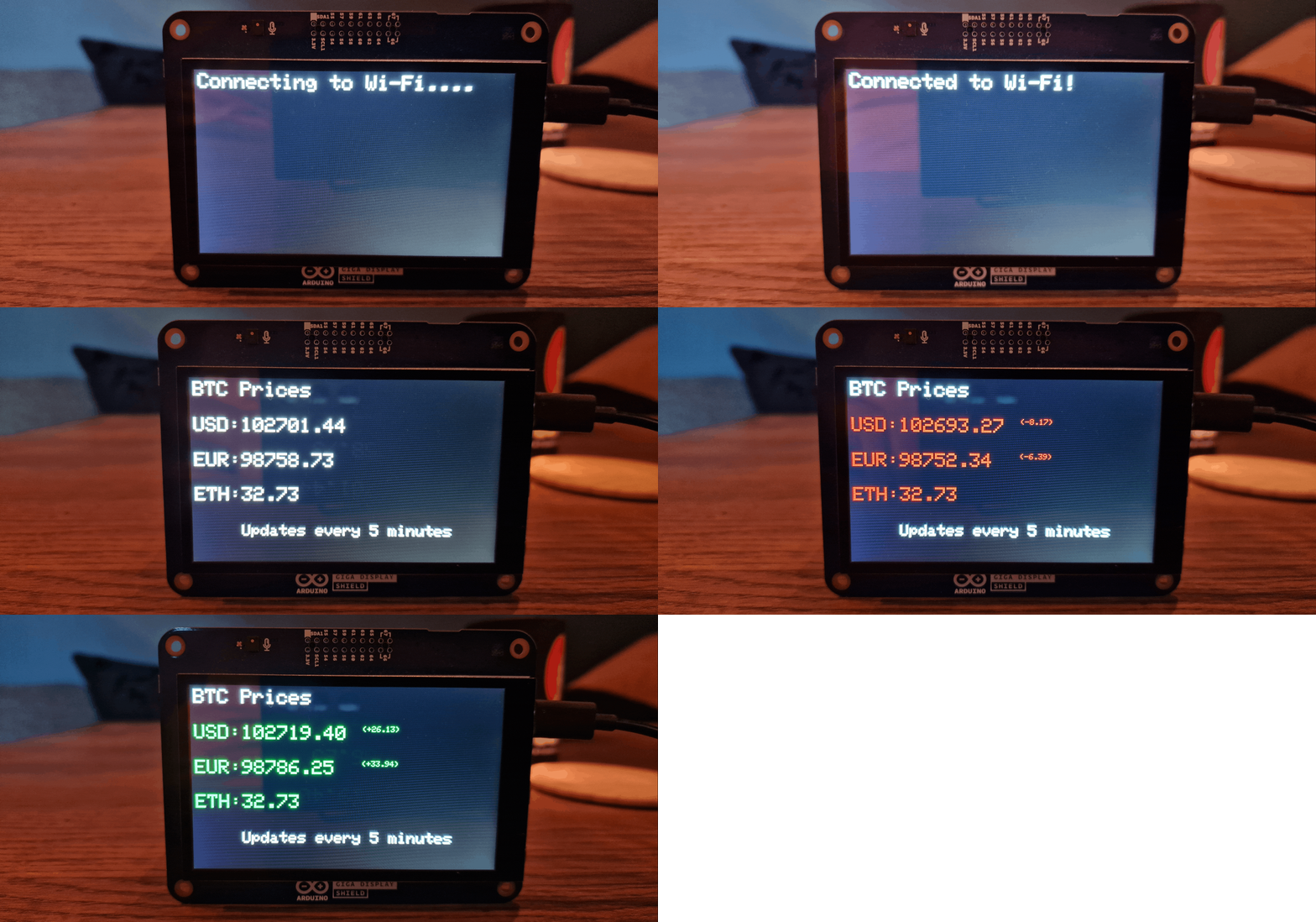
Cryptocurrencies are gaining more and more popularity nowadays, but their value is highly volatile and changes rapidly, so it is a good idea to keep track of their value often. Using the GIGA R1 WiFi and GIGA Display shield we can create a live value tracker that displays the price of a selected cryptocurrency in multiple currencies.
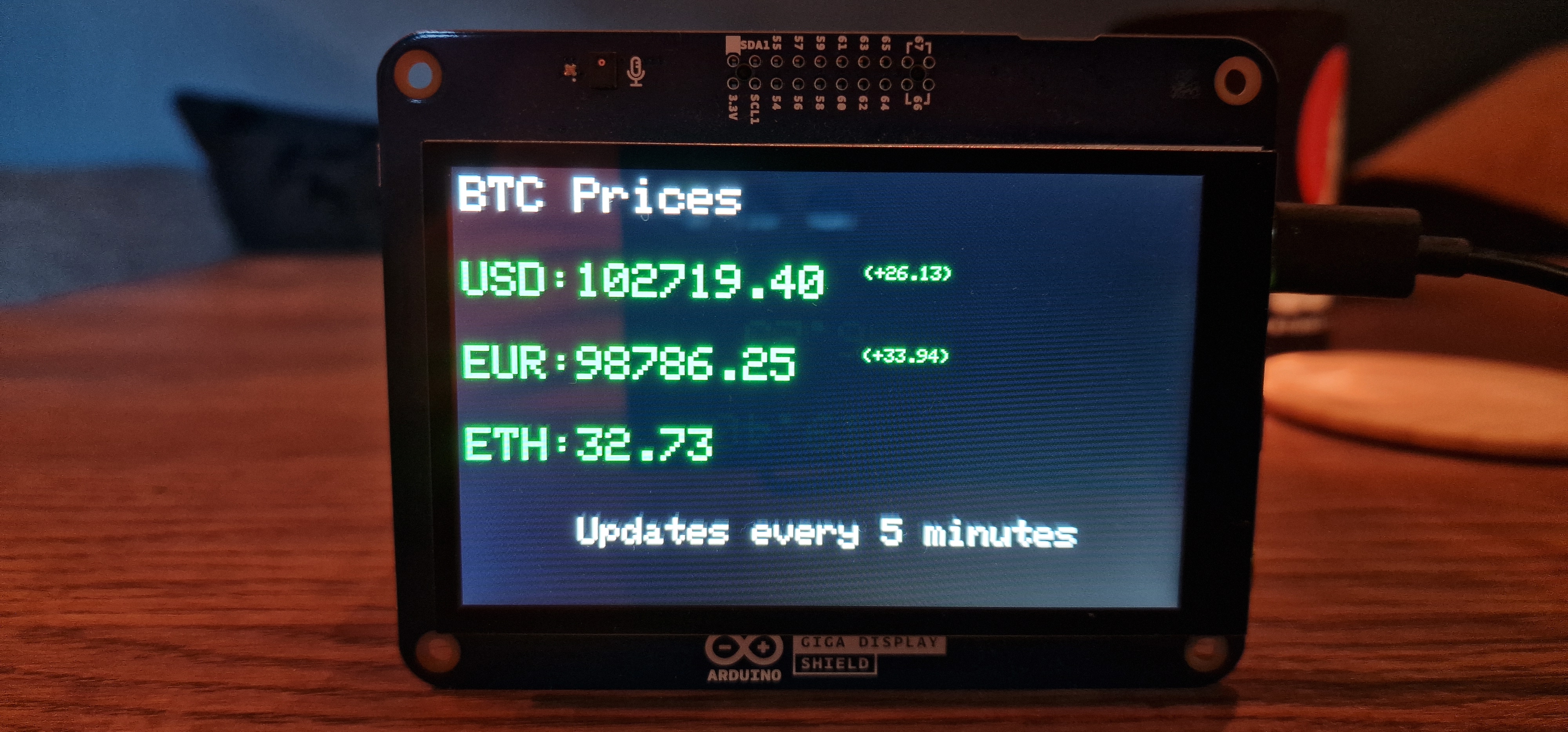
Let's create a solution that will display the price of Bitcoin cryptocurrency in Euro, US Dollars and Ethereum; updating every five minutes. The price on the display will change its color depending on whether the value has increased or decreased, while also showing the difference. This project is perfect to put on your desktop or wall so you can be sure you are always up-to-date, let's start!
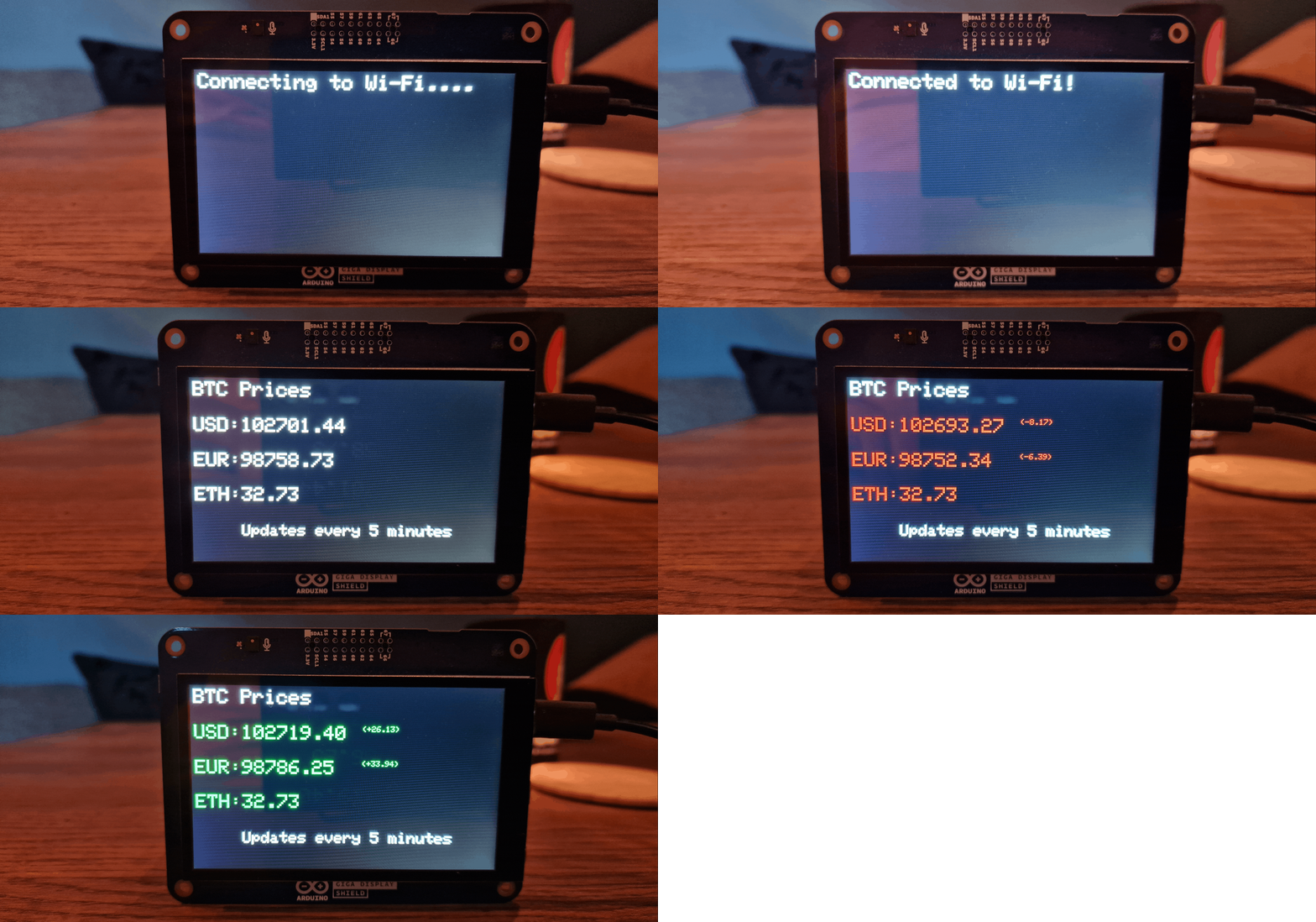
Live Market Data: Crypto Dashboard
The Arduino GIGA R1 WiFi is a beast of a microcontroller. When paired with the GIGA Display Shield, it becomes a powerful tablet capable of rendering high-res graphics and processing complex HTTP requests in real-time. This project proves that Arduinos are no longer just for blinking LEDs; they are fully capable edge-computing devices.
Hardware Profile
- Arduino GIGA R1 WiFi Board: The dual-core powerhouse.
- Arduino GIGA Display Shield: A beautiful 3.97" touchscreen.
- USB-C power supply.
Hardware Setup
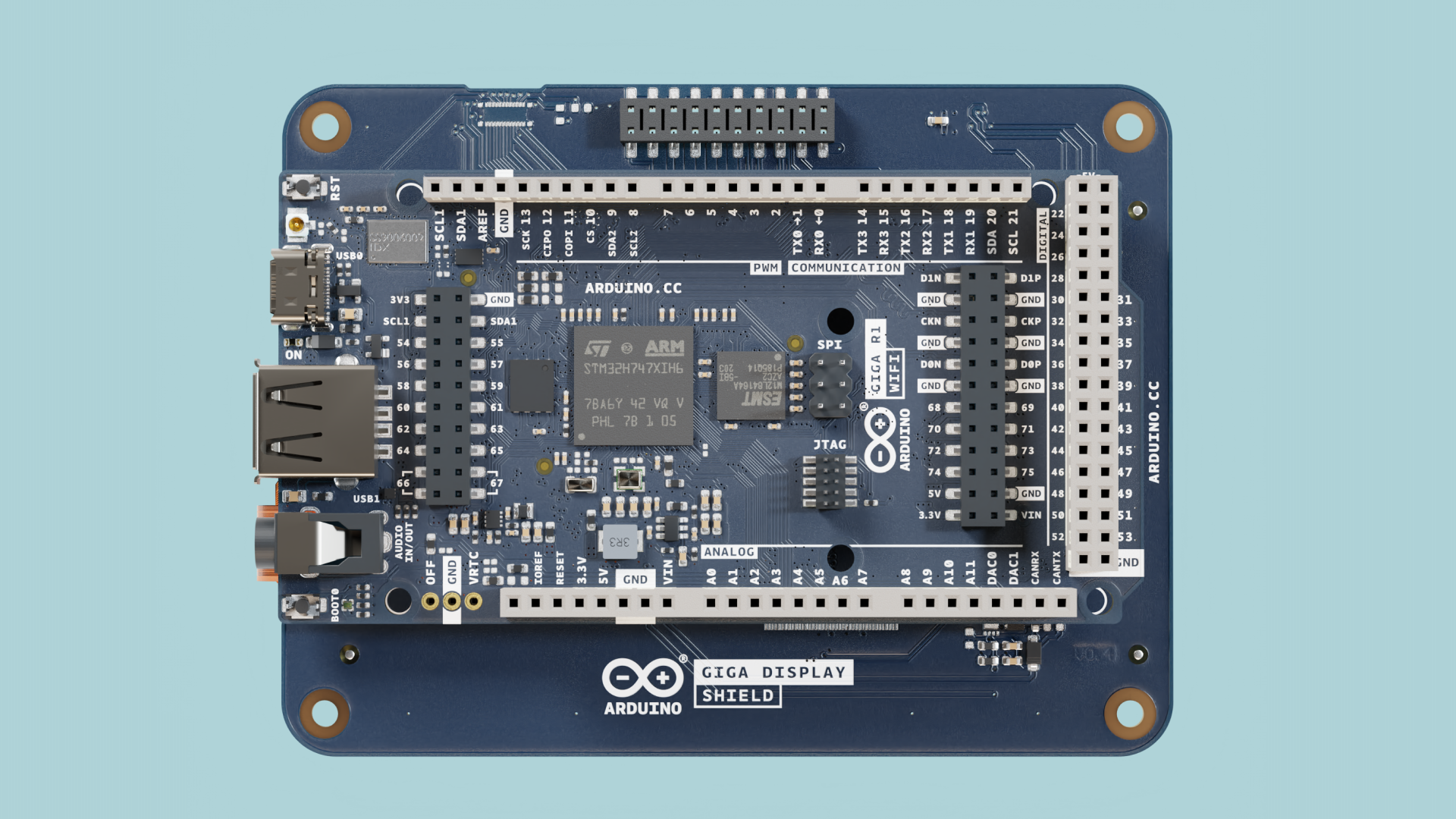
To use the GIGA Display Shield, mount it on the bottom side of the GIGA R1 WiFi board. The GIGA R1 WiFi board will be flipped upside down when the display is used. Mount the board onto the shield as shown in the image below:
Libraries
This project uses the following libraries to simplify implementation:
- WiFi - Manages the board’s Wi-Fi® connection. More info here.
- ArduinoHttpClient - Handles the HTTP functionality which enables the board to use API calls. More info here.
- ArduinoJson - The API request will return a JSON string, this library helps us gather the information we want from that JSON string. More info here.
- Arduino_GigaDisplay_GFX - This library handles the visual aspects of the GIGA Display Shield. More info here.
Setting up the Wi-Fi® connection
To connect to Wi-Fi, you will need your SSID and password. These credentials will be used in the code, so keep them noted. Enter this information in the following lines of the complete sketch:
const char* SSID = " ";
const char* PASS = " ";
To make troubleshooting easier we can print status text on the screen, making it easy to see if something gets stuck or if something is wrong with the program. In the following part of the code, we show the status on the Giga Display Shield while the board handles the Wi-Fi connection.
// Connect to Wi-Fi
display.fillScreen(BLACK);
display.setCursor(10, 10); //x,y
display.setTextSize(5); //adjust text size
display.print("Connecting to Wi-Fi....");
while (status != WL_CONNECTED) {
status = WiFi.begin(SSID, PASS);
// wait 10 seconds for connection:
delay(10000);
}
display.fillScreen(BLACK);
display.setCursor(10, 10);
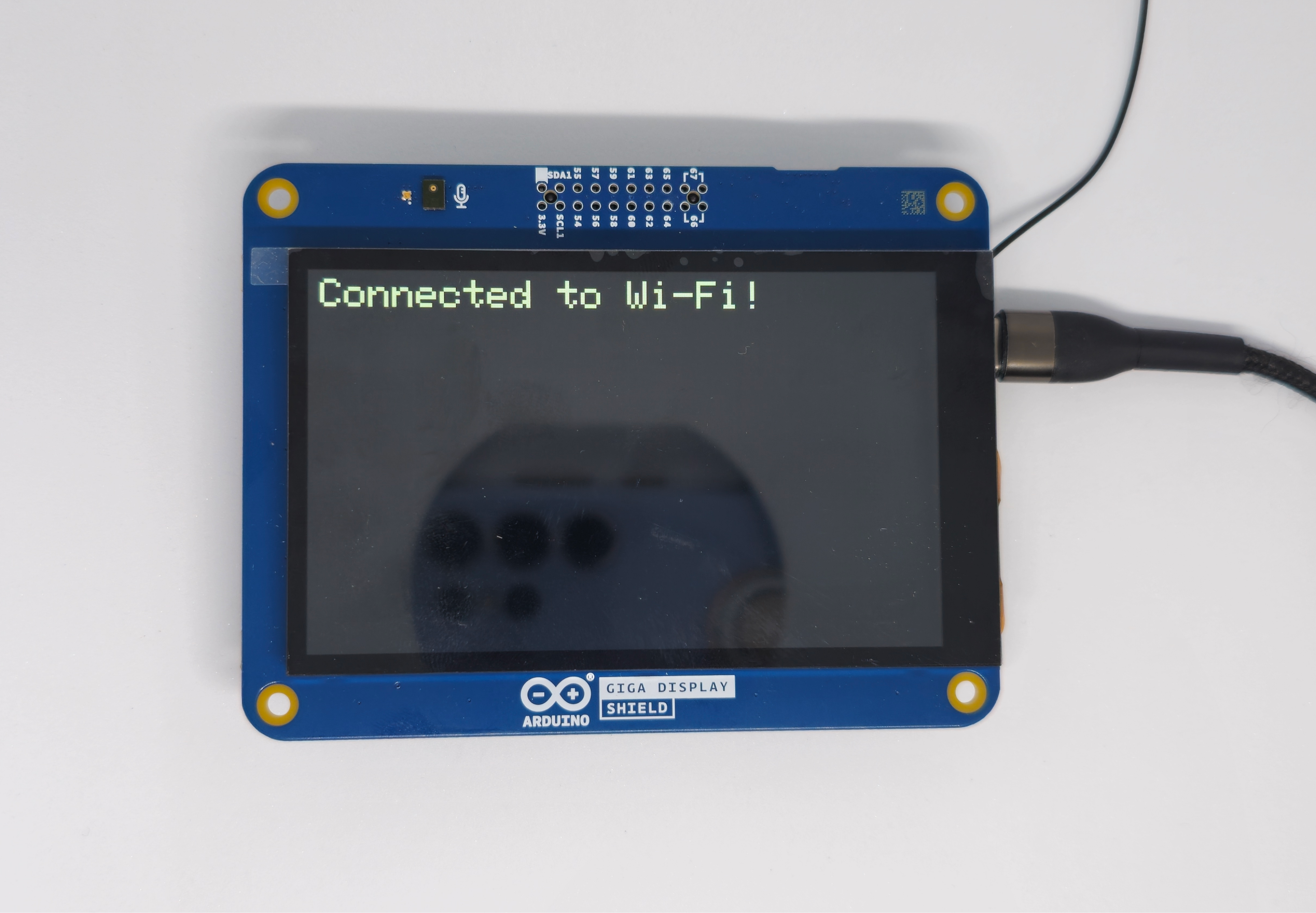
display.print("Connected to Wi-Fi!");
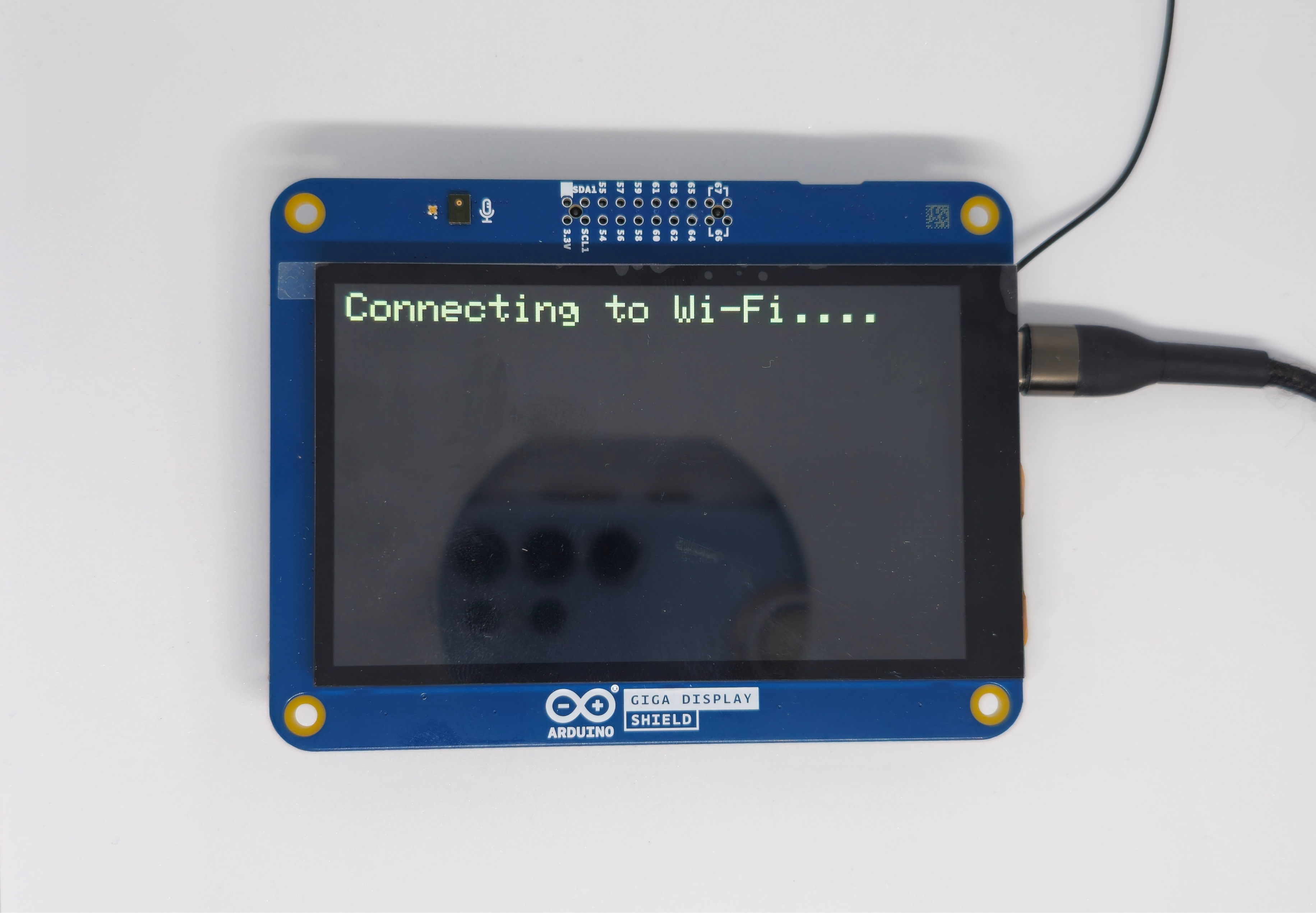
When the code is running on the GIGA Display Shield, it should look like the images below:
Setting up the API
We will be using the free coinbase.api which doesn't require an API key. We only need to set the URL and API request to get the necessary data. The API call will fetch Bitcoin prices in multiple currencies. We then filter the response to extract only the values for US Dollars , Euros and Ethereum for display.
If you want to track a different cryptocurrency then you have to find the appropriate API request on Coinbase's website , and then update the following line in the code:
client.get("/v2/exchange-rates?currency=BTC"); // API call
To keep the values updated we put the function call in the loop() with a delay. While the Coinbase API allows up to 10 requests per second, reducing the frequency of API calls is recommended.
The delay in this code is set to 5 minutes, so every 5 minutes the API will be called and the values will be updated. Feel free to change this delay to something that fits your needs.
void loop() {
delay(300000);
displayCryptoPrice();
}
Parsing JSON Data
This project relies on fetching data from public cryptocurrency APIs.
- The Request: The GIGA connects to Wi-Fi and sends an HTTP GET request to the API server.
- The Response: The server sends back a massive chunk of text in JSON format (e.g.,
{"bitcoin":{"usd":65000}}). - The Parser: Using the
Arduino_JSONlibrary, the code searches through this text string, extracts the specific price numbers, and saves them as floats.
Sorting data from the API call
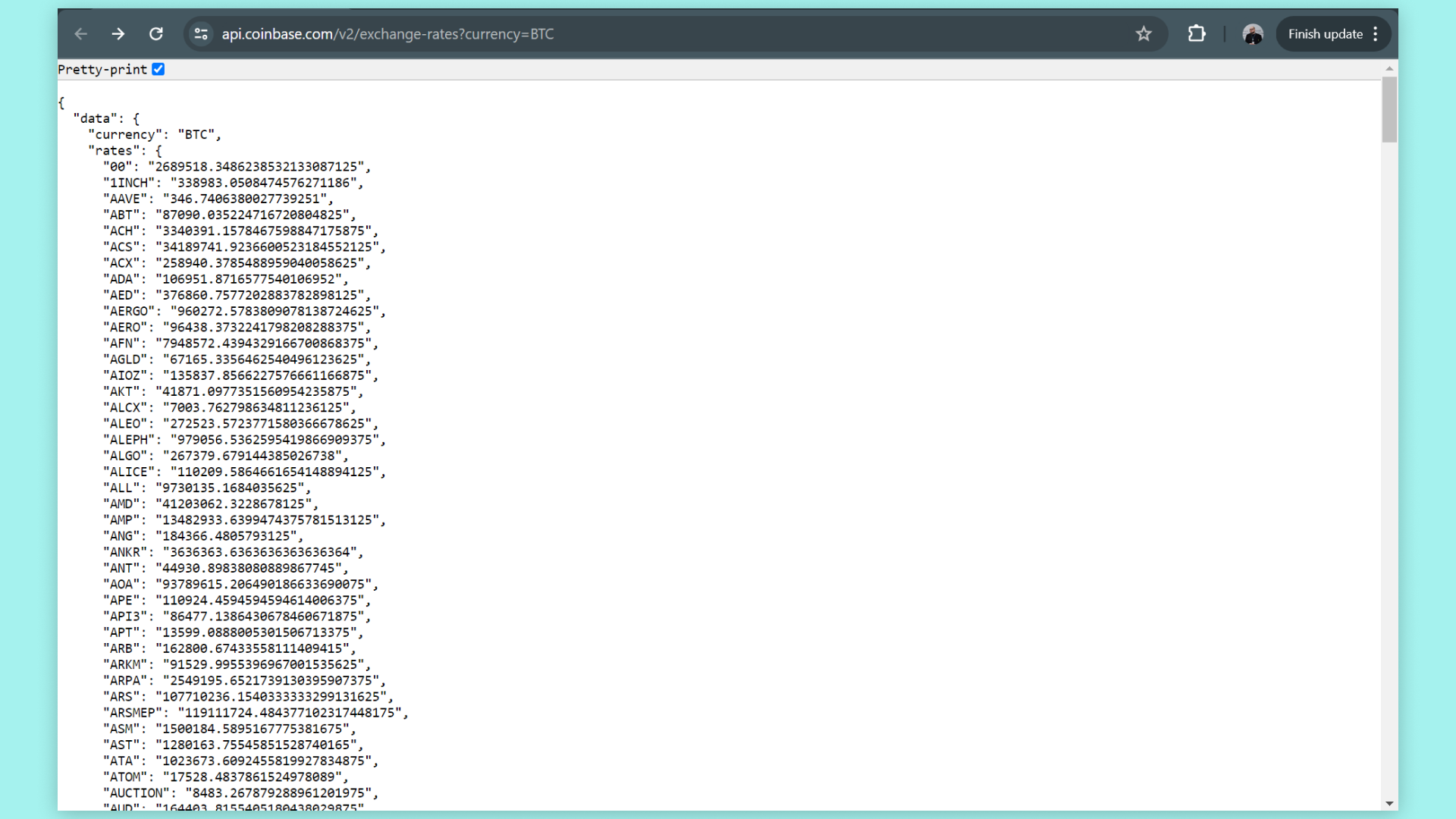
The API call will return a big JSON string that we need to sort for the data that we want. We are looking for the name of the cryptocurrency we are tracking with its USD , EUR and ETH prices. We can do that with the following code:
String currency = doc["data"]["currency"];
float usdPrice = doc["data"]["rates"]["USD"];
float eurPrice = doc["data"]["rates"]["EUR"];
float ethPrice = doc["data"]["rates"]["ETH"];
If you want to track different currencies, it is helpful to take a look at the full output of the result variable. The data structure follows an order where "data" is the top-level key. Inside it, you will find "rates" , which contain various currency values such as "USD" (as shown in the code).
if you want to track another currency just change the "USD" to the currency you want to see.
Using the display
Now that the values are sorted out we can easily print them on the screen. Begin by set the position where the text will appear using display.setCursor(x, y); , which defines the x and y coordinates for text placement.
With display.print() we can easily put any text on the screen. Here, we will use the currency variable so it updates automatically if the API call is changed.
display.fillScreen(BLACK);
display.setCursor(10, 10);
display.setTextSize(5);
display.print(currency + " Prices");
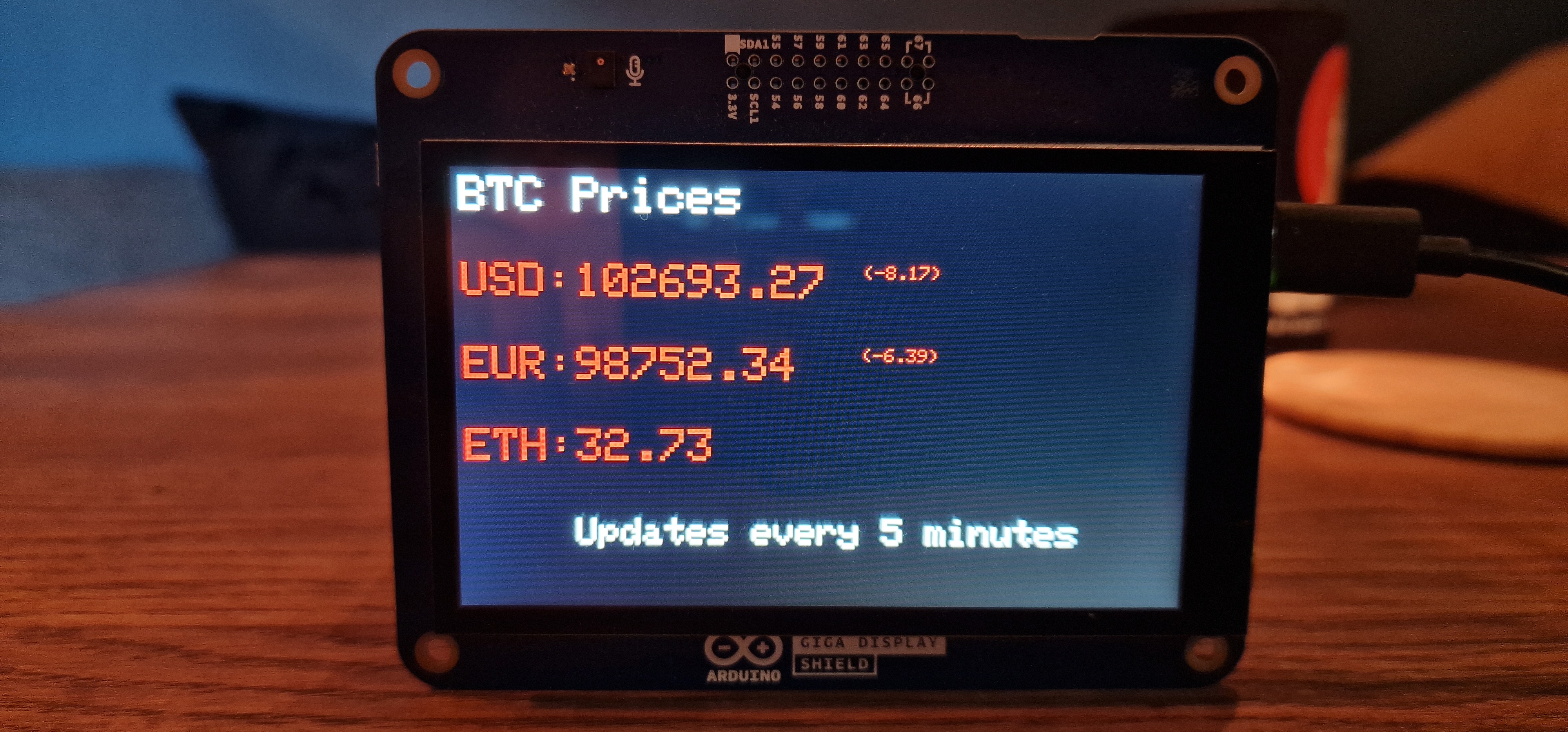
For the currency values we want the text color to change depending on the value change. We can do this with some simple if() functions. Every time the crypto value is updated, we save the last value in a variable to compare the values easily and find out if they have decreased or increased. If it has increased, we put the text color as green, and if it has decreased, we put it as red. Here, we can also figure out the value difference and put it in a string for later use.
if(lastUSDPrice < usdPrice){
display.setTextColor(GREEN);
usdDiff = usdPrice - lastUSDPrice;
usdDiffText = "(+" + String(usdDiff) + ")";
}
if(lastUSDPrice > usdPrice){
display.setTextColor(RED);
usdDiff = usdPrice - lastUSDPrice;
usdDiffText = ("(" + String(usdDiff) + ")");
}
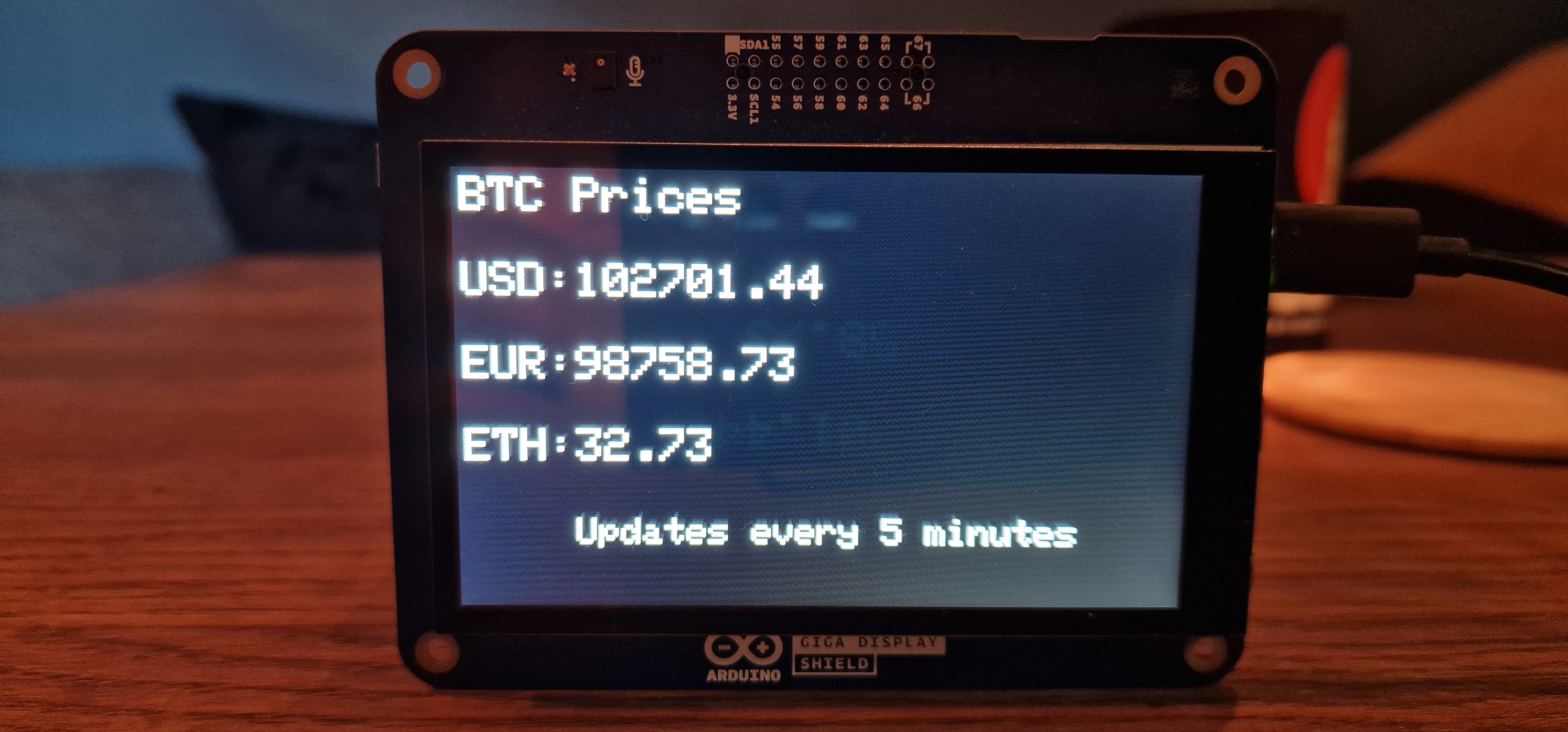
We can also implement a check so that the first time info is printed it will be in white and the difference numbers won't be printed.
if(lastUSDPrice == 0){
display.setTextColor(WHITE);
usdDiffText = " ";
}
Now, all that is left is setting the size and coordinates and displaying the values.
// Puts the info on the display
display.setTextSize(5);
display.setCursor(10, 100);
display.print("USD: ");
display.setCursor(130, 100);
display.print(usdPrice, 2);
// Puts the value difference on the display
display.setTextSize(2);
display.setCursor(440, 100);
display.print(usdDiffText);
Do this for every currency and we have a complete project!
Suggestions
Now that you understand the use of API´s and crypto, there is a lot of room for customization. Track different crypto or different currencies. You can use different APIs or expand what the Coinbase API offers you. Have a look at their API page to find out what solution could fit you. Make this project your own!