As an alternative to tracking computer's cursor using a mouse or a trackpad, I have made this same application with the help of a joystick. The joystick can move the cursor in any direction (x and Y axis) and also performs click function with the built-in joystick's switch.
Basics-
A joystick plainly consists of 2 potentiometers aligned in the x and y direction. The arduino reads analog values from the joystick in the range of 0 to 1023. Thus, when the joystick is in its default(center) position, the analog value also becomes close to 500(between 0 and 1023).

The arduino sketch is programmed such that when the joystick is moved away from the center, then print values in the range from -sensitivity to +sensitivity value(default vlaue set is 10) depending on the position. So, when the joystick is moved in one extreme position, the arduino prints value 10 and if the joystick is moved in other extreme position, then -10 is printed.
To print separate values for x and y direction, we will use ":" between the x and y direction values. Example:
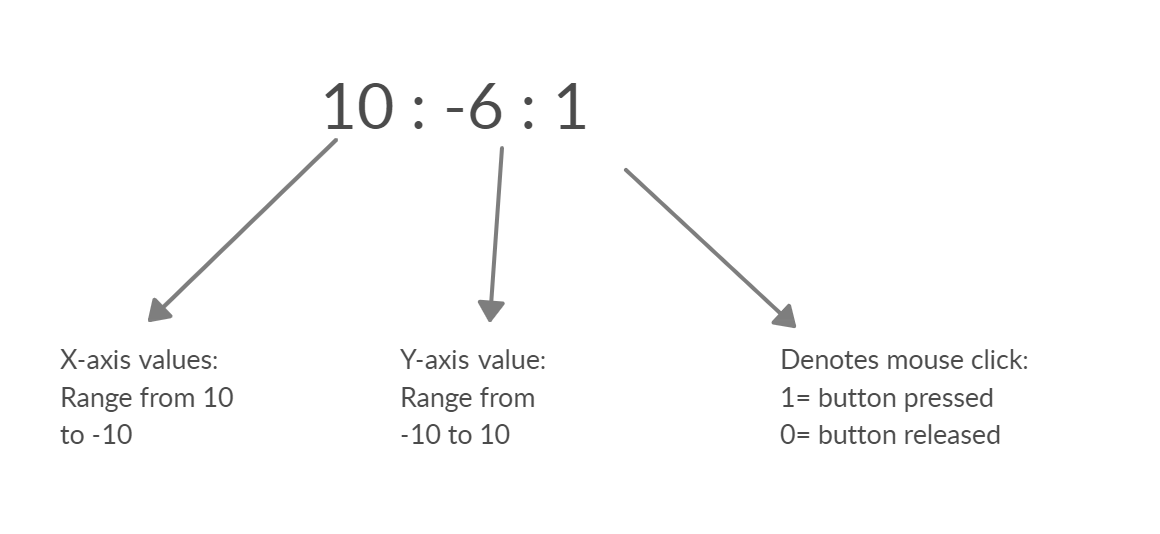
The status of joystick button(SW) is printed(1/0) on the serial monitor after the x and y values.
For the laptop/computer to recognize the values, we will need the python's pyautogui module.
HID Emulation: Joystick to PC Mouse
The Joystick Controlled Mouse project unlocks a "hidden" superpower of specific Arduino boards: Human Interface Device (HID) Emulation. When plugged in, your computer doesn't see a microcontroller; it sees a standard, plug-and-play USB mouse!
The Leonardo / Micro Advantage
You cannot build this project with a standard Arduino Uno or Nano. The Uno uses a separate chip for USB communication. The Arduino Leonardo (or Arduino Micro / Pro Micro) has an ATmega32U4 chip with built-in USB communication.
By simply including the `
- `Mouse.move(10, -5, 0)`: Moves the cursor 10 pixels right and 5 pixels up.
- `Mouse.click()`: Performs a standard left-click.
Converting Analog to Pixels
This process involves three key steps:
- The Read: The Analog Joystick (built from two internal potentiometers) sends a value from 0 to 1023 to pins A0 and A1. The resting center is ~512.
- The Mapping: The code uses the `map()` function to convert the massive `0-1023` range into a tighter pixel movement range, like `-10 to +10`.
- The Deadzone: Analog sticks are noisy! It is critical to program a "deadzone" (e.g., `if(x > 500 && x < 520) then speed = 0`) to stop the mouse cursor from drifting infinitely when you let go of the stick.
Necessary Parts
- Arduino Leonardo or Arduino Micro (ATmega32U4 required).
- Thumb Joystick Module (2-Axis with push button).
- Micro-USB Cable.
This project proves you can build your own custom game controllers, adaptive accessibility devices, or flight simulator panels!
Python Programming
(edited 12/11/2020 - changed the library from 'pyautogui' to 'mouse')
The user must have python 3 installed on their laptop/computer. It can be downloaded from the here.
After installation, Copy the path of the python file location.
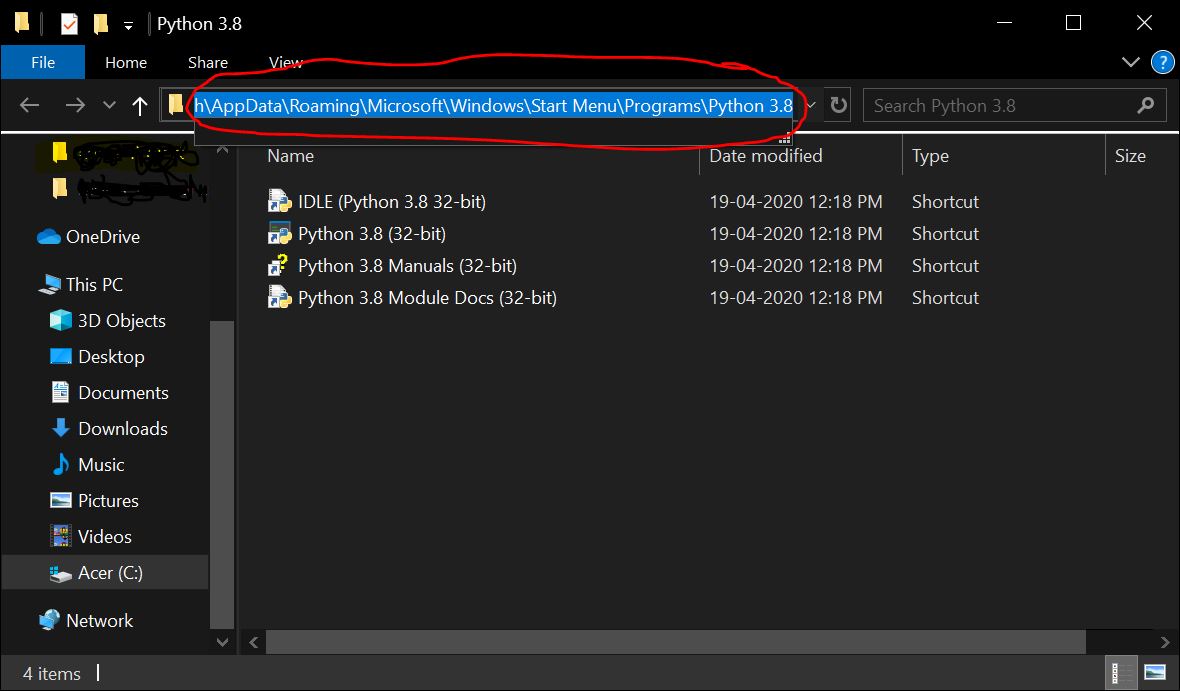
The following steps are to be performed on the command prompt. Open command prompt and enter the following-
1. cd
2. py –m pip install –-upgrade pip
3. py –m pip install mouse
4. py -m pip install pyserial
The mouse module is used to perform mouse action and pyserial module is used to send/receive data from the arduino. I had already installed the necessary modules, so I got this
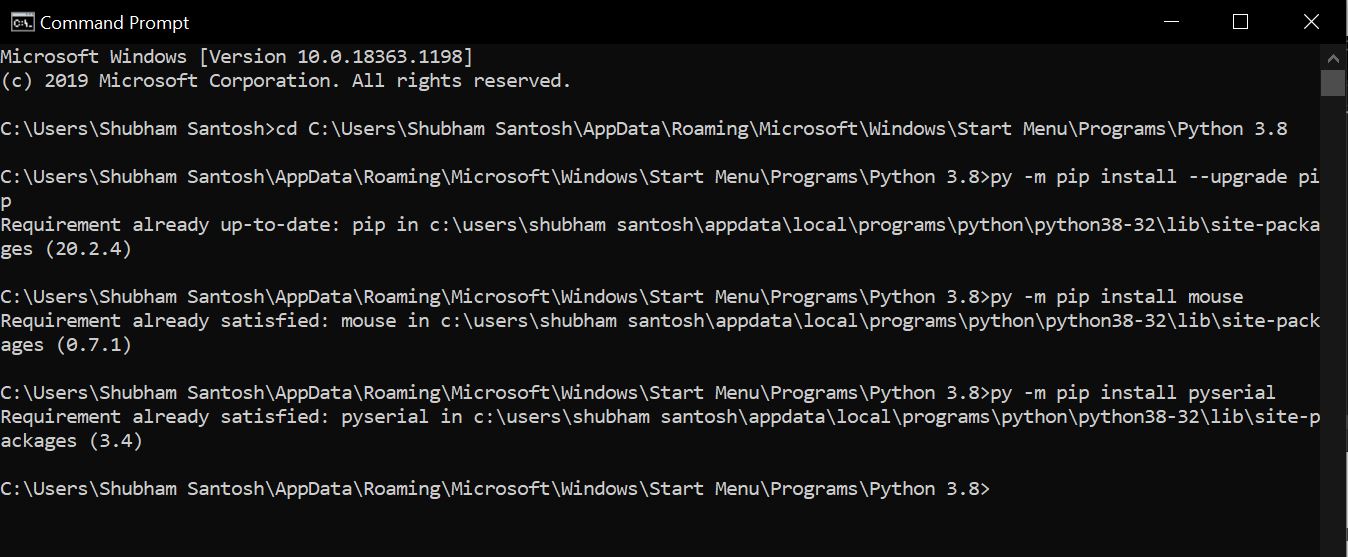
The python program is made to read the data printed by the Arduino and recognise the x and y direction values as well as the status of switch(SW).
The current coordinates of the cursor is obtained from the mouse function mouse.get_position() which provides the cursor's X and Y co-ordinates in the form of pixels.
When the joystick is moved, the analog values provided by the arduino is added with the current cursor's position to move the cursor in the desired direction.
To move the cursor in the given direction, the function mouse.move(X+x,Y+y) satisfies this purpose.
where X and Y is the current cursor's position and x and y are the increment/decrement positions provided by the arduino.
example: mouse.moveTo(100,150) moves the cursor to 100 pixels in the x-axis and 150 pixels in the y-axis.
To perform click operation based on the SW status, mouse.click(button="left") is used.
Final Execution
Upload the arduino sketch(given below) to your arduino UNO and connect the joystick to the arduino pins as given in the schematic.
After ensuring that mouse and pyserial is installed on your computer/laptop perform the following steps.
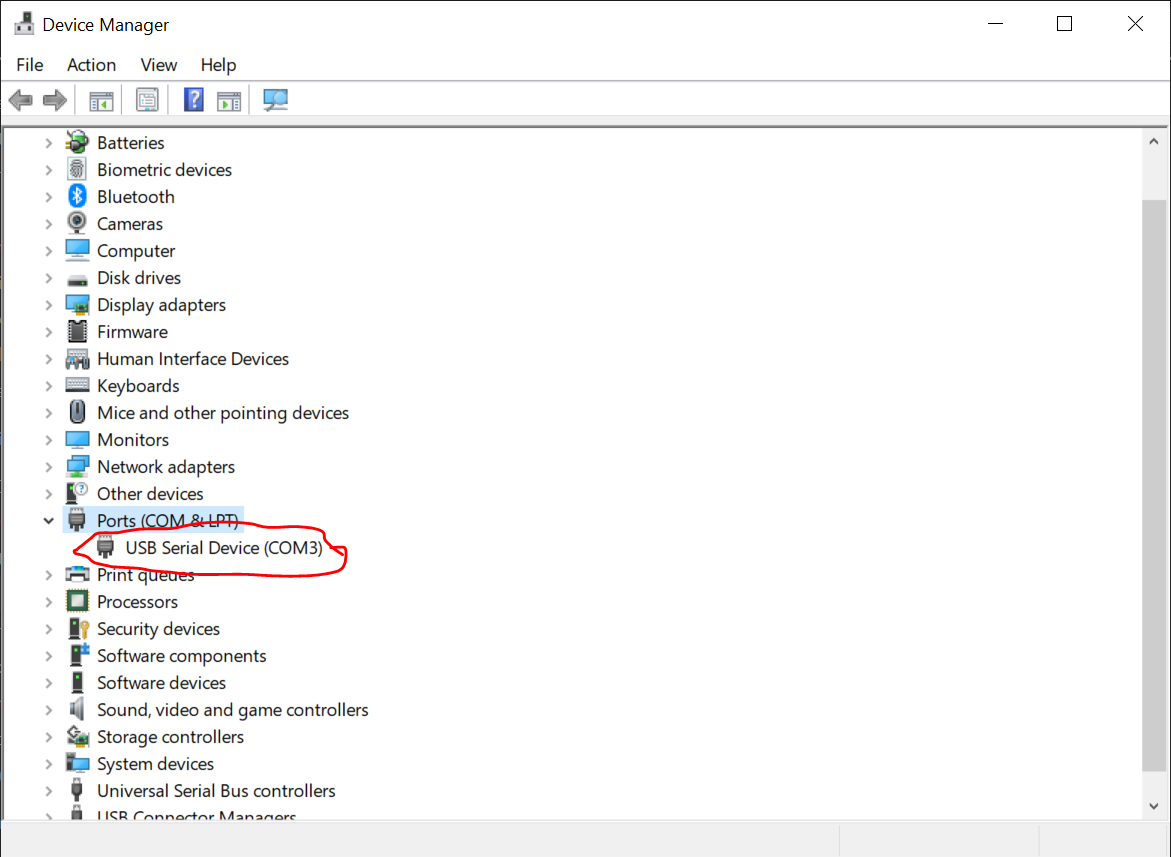
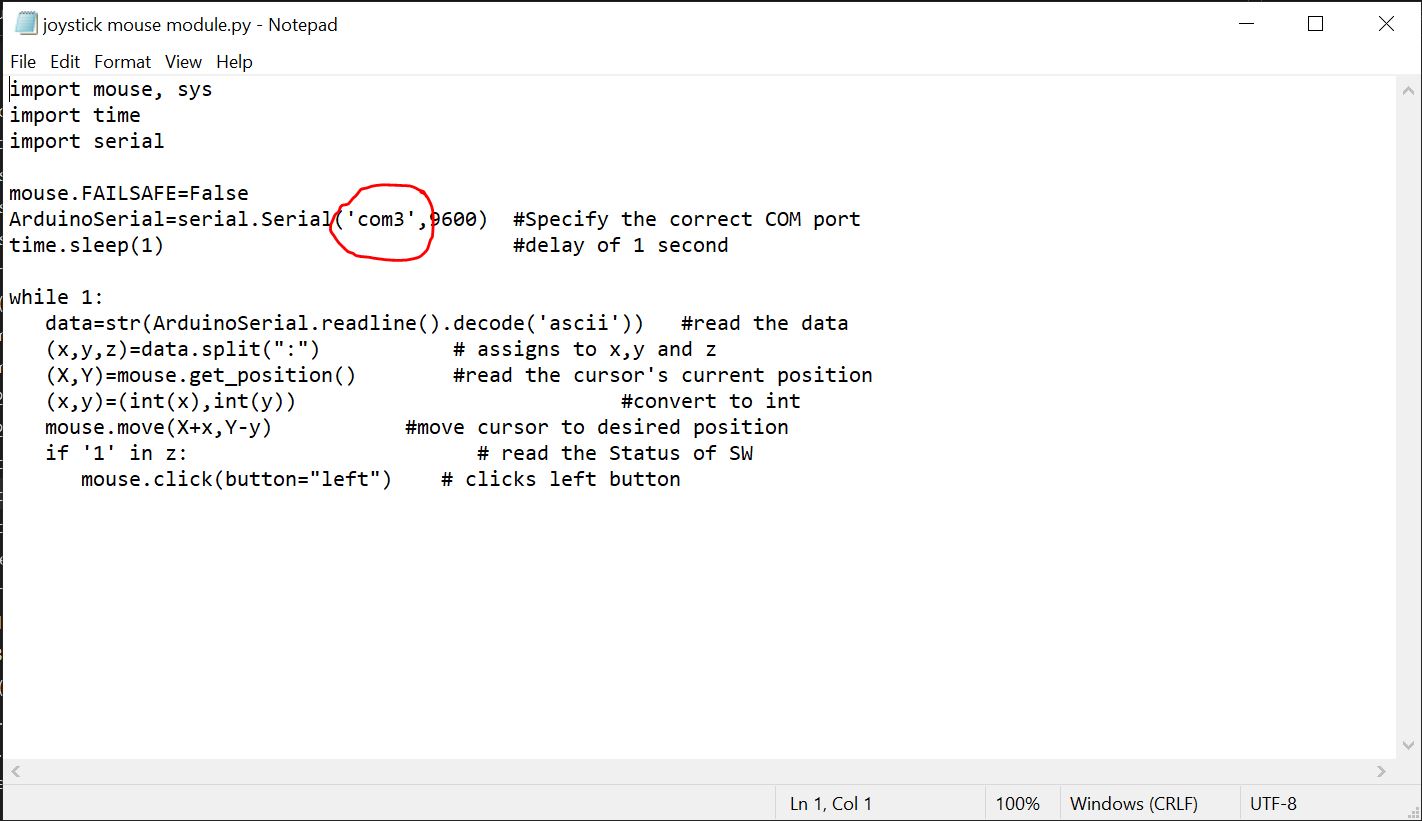
1. Copy the python sketch in a notepad file. Specify the correct COM port of the arduino. From the device manager, you can get the COM port to which the arduino board is connected. Save the file as ".py" after making changes.
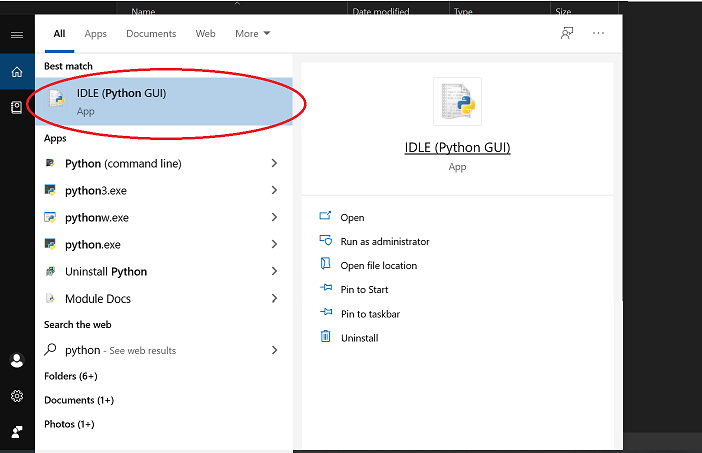
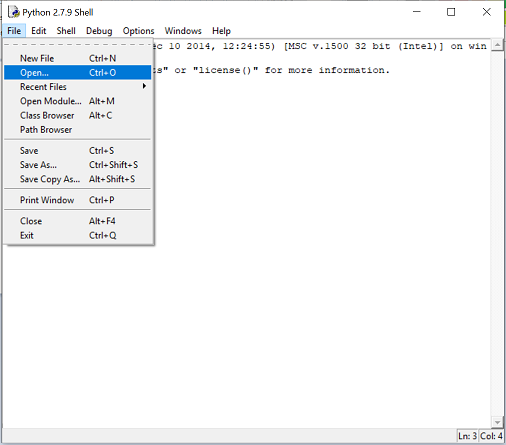
2. Open python's IDLE(python GUI) and open notepad file from it.
3. run the module.
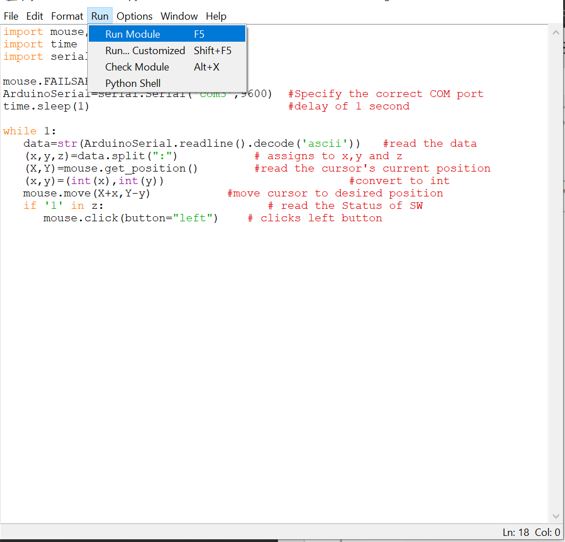
You will then be directed back to screen in Fig 4
In case you see any errors, restart the IDLE and check whether you have mentioned the correct COM port of the arduino.
If there are no errors, then move the joystick and you will see the movement of the cursor.