Introducing
This time it will show how to read data from nodeMCU, WemOS, or similar via the Internet – The first example I will use is the temperature reading from the sensor connected to ESP on demand – YOu click refresh and immediately You got actual temperature, humidity, and pressure displayed at webPage
The second example is reading temperature, pressure, and humidity periodically and store it at the database, so You can later display some chart with historical data
The Modern Weather Hub: ESP8266 + RemoteMe
Gone are the days of checking a physical thermometer on your porch. This project demonstrates how to build a high-performance IoT Weather Station using the ESP8266 (NodeMCU or Wemos D1 Mini) and the precision BME280 sensor. By integrating with the RemoteMe.org platform, you can access your home's climate data from anywhere in the world—whether you're on a bus or halfway across the globe.
Hybrid Data Strategy: Real-Time vs. Historical
This project highlights two essential IoT communication patterns:
- On-Demand Syncing: In "On-Demand" mode, the system uses synchronous communication. When you click the Refresh button on your custom webpage, a signal is sent to the ESP8266, which instantly reads the sensor and pushes the latest Temperature, Humidity, and Pressure back to your screen.
- Autonomous Cloud Logging: For long-term insights, the ESP8266 can be programmed to wake up periodically (e.g., every 5 minutes), log data to the RemoteMe Cloud Database, and then return to Deep Sleep. This allows you to generate professional-looking charts that track weather trends over days, weeks, or months.
Software Architecture and Data Security
Scaling a DIY IoT project requires more than simple logic—it requires a robust backend:
- Token-Based Security: Interaction between the ESP8266 and the cloud is secured via RemoteMe Tokens, ensuring that only your authorized devices can post or read data.
- JSON and JavaScript Integration: The frontend uses JQuery and Plotly to parse incoming JSON data streams, turning raw binary values from the sensor into beautifully rendered, interactive graphs.
- The BME280 Advantage: Unlike the DHT series, the BME280 provides atmospheric pressure, which is critical for predicting localized weather shifts and identifying incoming storms.
Building for the Future
Whether you are looking to optimize your home's HVAC system or just want a "smart" window to your environment, this project serves as a foundational template for Smart Home Sensing. With its modular design, you can easily add more sensors (like CO2 or Dust modules) to create a truly comprehensive indoor air quality monitor.
You can watch all steps in youtube
Temperature pressure and humidity on demand
Assumptions
Access to the entire mechanism will be outside the local network, i.e. it will not be a problem to read the temperature from the phone mobile in the bus.
To read the temperature we will create synchronous communication, after sending a message to our ESP in response we will get temperature, humidity and pressure.
In general, to create this type of scenario, we must have access to our arduino from outside the local network – there are several solutions I will show you how to do it with remoteme.org
What we want to achieve
A website with this appearance:
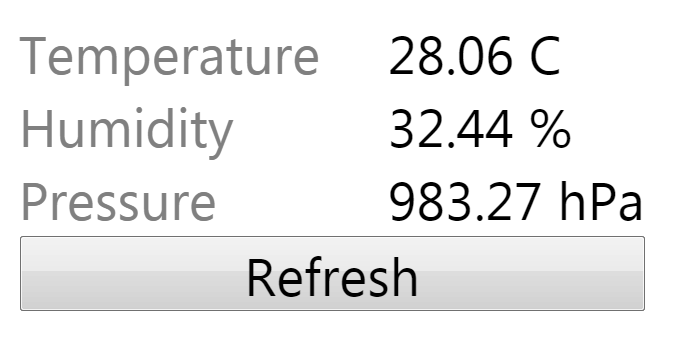
After loading the page, we display the current temperature, pressure and humidity, and of course the data are reload after clicking the Refresh button.
Components
GY-BME280 – as a thermometer, a hygrometer and a pressure meter in one
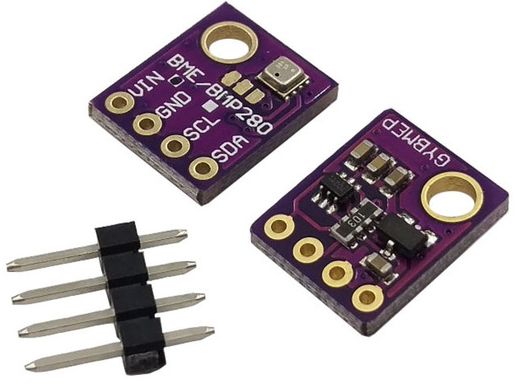
- nodeMCU or WemOS
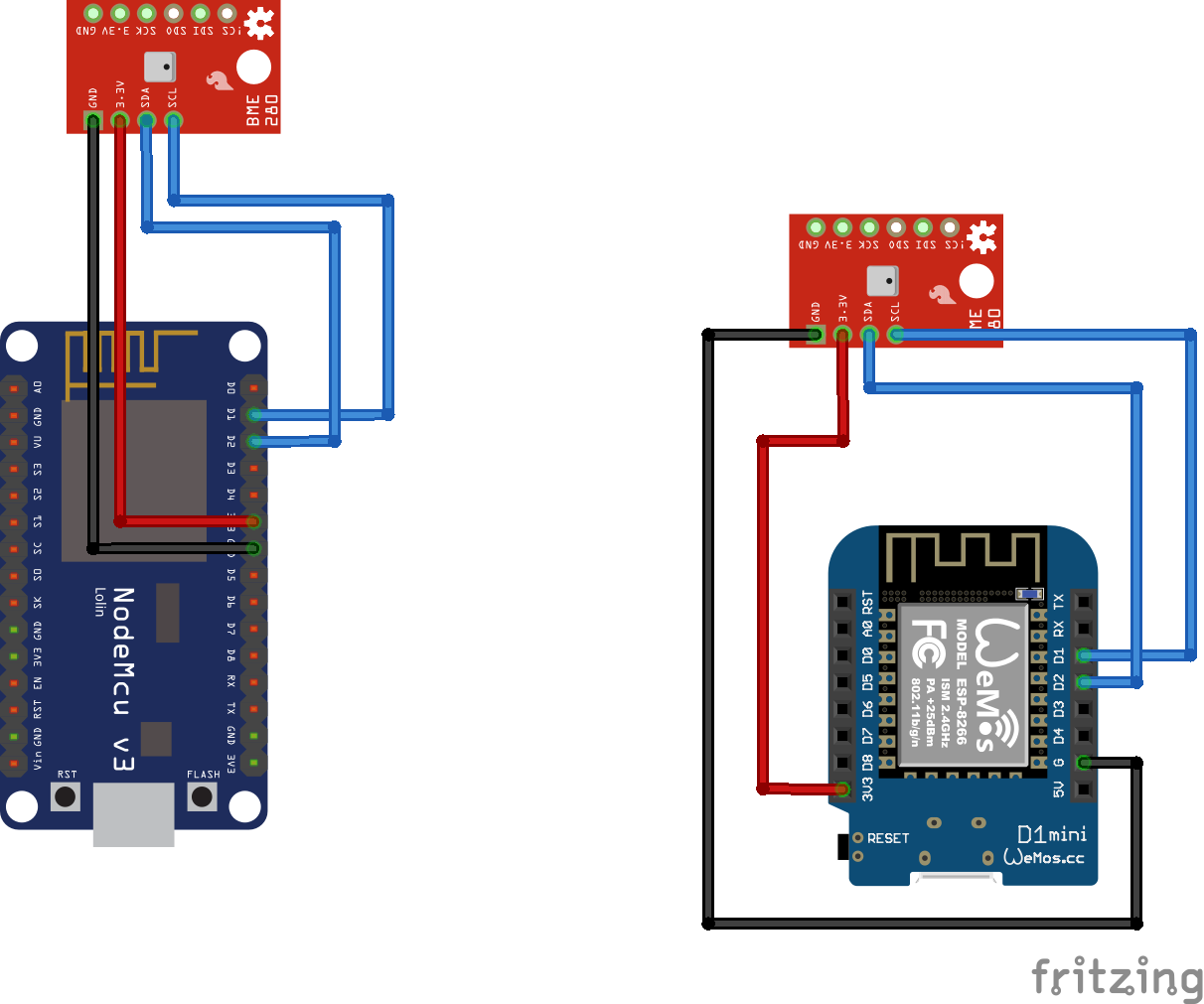
Connections
app.remoteme.org configuring
Before we return to our arduino, let’s register our account in the system and create a token – the tasks described above.
Signup
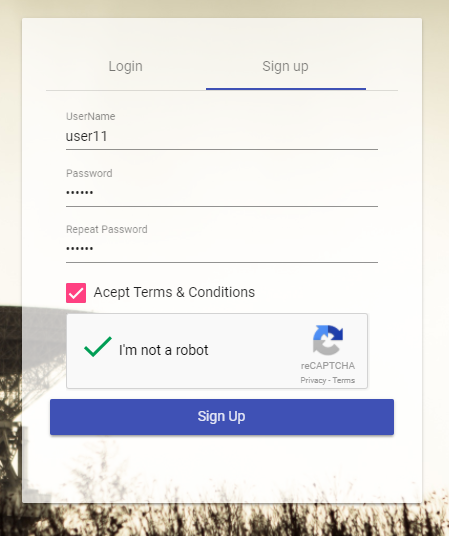
- Sign Up tab
- you do not give your email so it is not possible to retrieve your password – you must remember it
- Click SignUp the system will login us immediately
Creating a token
Using the token added to the arduino program, arduino will be connected to our account.
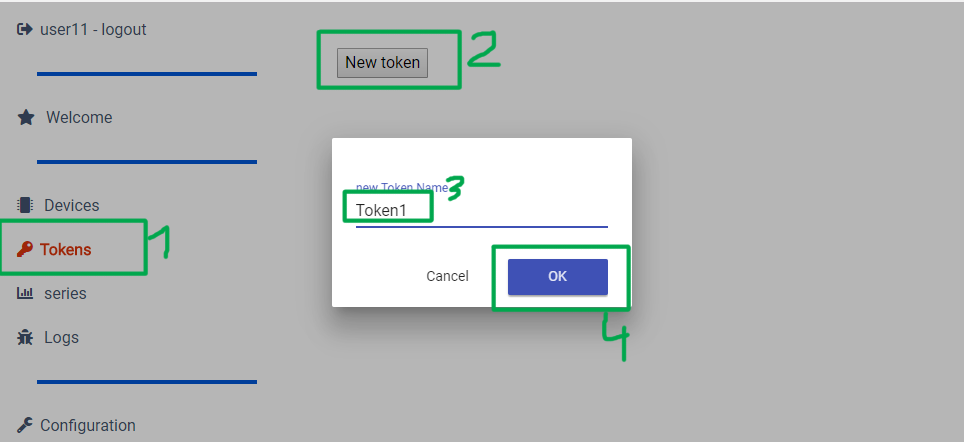
- Go to the tab Tokens on the left
- Click New Token, complete the name (no matter what you type) and click OK
- [3] this is the only field you fill – the name of the token is only for us, it is not used anywhere except displaying the token in the token list.
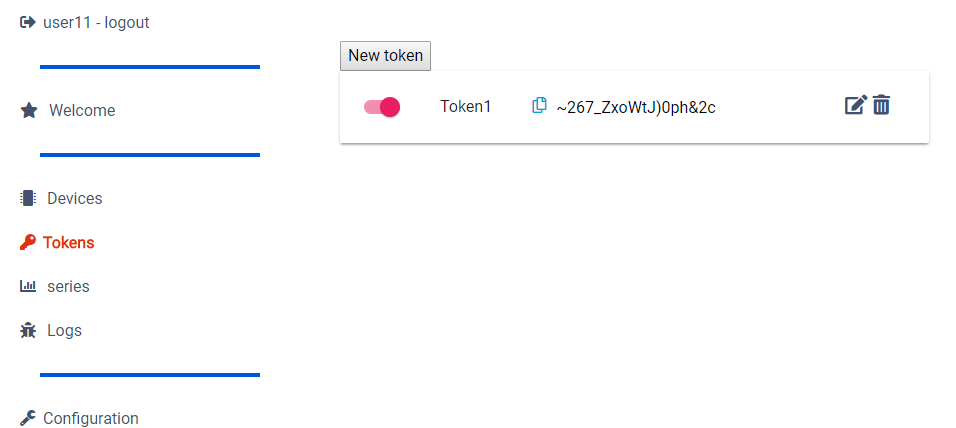
- The token will be created:
- in my case token is “~267_ZxoWtJ)0ph&2c” it can be copied by clicking on the blue icon
Program for arduino
First You need to install additional libraries
RemoteMe libraries by Remoteme.orgthen add library as a zip
add downloaded zip into libraries
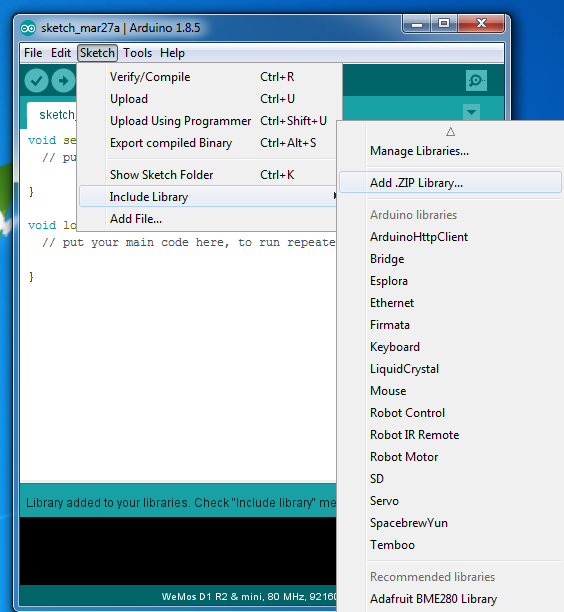
and check if everything is correct isntalled
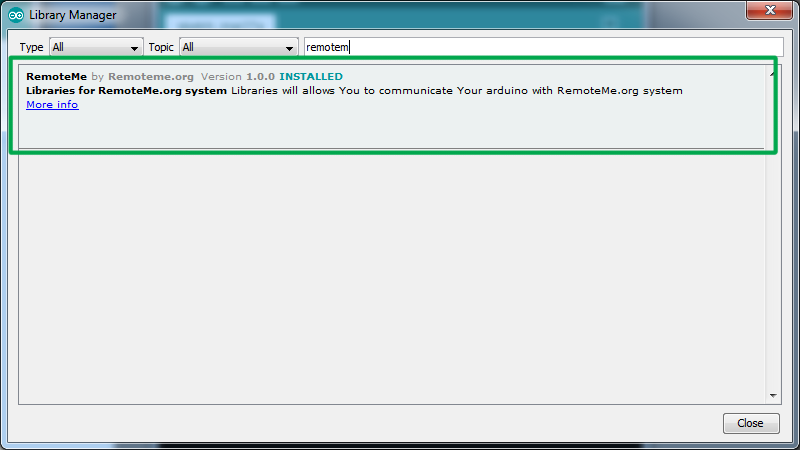
Other libraries
- WebSockets by Markus Sattler
- ArduinoHttpClient by Arduino
- ESP8266WiFi by Iven Grokhotkov
- SparkFun BME280 by SparkFun Electronics
Program for arduino can be copy from this link
I think that the program itself is quite readable, and the most important function of onUserSyncMessage I described below. Of course, we have to supplement our constants:
#define WIFI_NAME ""
#define WIFI_PASSWORD ""
#define DEVICE_ID 204
#define DEVICE_NAME "temperatureOnRequest"
#define TOKEN ""
In addition, description of the operation at the bottom of the article
Upload arduino program to device. After arduino launch in the Devices tab, our ESP will appear:

WebPage
Now it’s time to create a website that will connect to our ESP and show the datas.
In the “Devices” tab, select the New button and then “New WebPage”
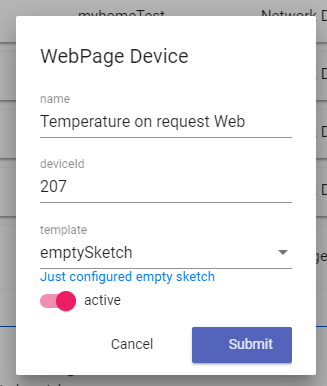
Now, let’s upload three files to our website.
- Files to upload index.html, script.js and styles.css are located here
- The easiest way is to simply drag files from github to our website, shown on the video
- We filled inputs as on the screen. Information what each field meansa you can find here.
- Opening of the website: click on the index.html file and select the Open in New Tab option. On the new tab will appear our website where after clicking Refresh the temperature, pressure and humidity will change to the current one.
How does it work.
Most important part of code is in the script.js file and in the arduino program. Let us discuss the following fragments:
script.js
function setup(){

\tremoteme = new RemoteMe({
\t\tautomaticlyConnectWS: true,
\t\tautomaticlyConnectWebRTC:false,
\t\twebSocketConnectionChange: webSocketConnectionChange,
\t\twebRTCConnectionChange: undefined,
\t\tmediaConstraints: {'mandatory': {'OfferToReceiveAudio': false, 'OfferToReceiveVideo': false}}
\t});
}
standard settings. The program immediately connects and registers to the remoteme.org application.
Reference to the function
webSocketConnectionChange: webSocketConnectionChange,
the function itself looks like this:
function webSocketConnectionChange(state){

\tif (state==WebsocketConnectingStatusEnum.CONNECTED){
\t\treadDataNow();
\t}
}
so after correct connection with remoteme.org, the program reads the data. The same readDataNow () function is called after clicking the “Refresh” button.
Let’s see what the readDataNow () function does:
function readDataNow(){
\tremoteme.sendUserSyncMessageWebSocket(temperatureArduinoDeviceId,[],onResponse);
}
it sends the data to our ESP (that’s why you need the temperatureArduinoDeviceId which will indicate the ID (address of our ESP at our example it is 204) as data we send empty table: [], and after the response come the onResponse function should be called.
Let’s move to program on ESP and see how we handle incoming synchronous messages
arduino.ino:
void onUserSyncMessage(uint16_t senderDeviceId, uint16_t dataSize, uint8_t* data, uint16_t &returnDataSize, uint8_t *&returnData)
{
\tuint16_t pos = 0;

\treturnDataSize = sizeOf(float32)*3;
\treturnData = (uint8_t*)malloc(returnDataSize);
\t

\tRemoteMeMessagesUtils::putFloat(returnData,pos, (mySensor.readTempC()));
\tRemoteMeMessagesUtils::putFloat(returnData, pos, (mySensor.readFloatPressure() ));
\tRemoteMeMessagesUtils::putFloat(returnData, pos, (mySensor.readFloatHumidity() ));
\t

}
the above function will be called when a message arrives from script.js parameters:
returnData = (uint8_t*)malloc(returnDataSize);
\t

\tRemoteMeMessagesUtils::putFloat(returnData,pos, (mySensor.readTempC()));
\tRemoteMeMessagesUtils::putFloat(returnData, pos, (mySensor.readFloatPressure() ));
\tRemoteMeMessagesUtils::putFloat(returnData, pos, (mySensor.readFloatHumidity() ));
using the putFloat function, we enter three readings in the output table one by one. So after leaving the function, we have an array of bytes where the following numbers are written: temperature, pressure and humidity.
- senderDeviceId – id of our website
- dataSize – data size of data (at our case its 0 becasue we sent empty array at script.js)
- data -data from websote (at our case there is nothing here)
- returnDataSize – here we will enter how many bytes we will send as the answer – we send 12 because we have three readings, and each is a float number that has 4 bytes
- returnData – here we write return data
Let’s go back to the script.js file and read these values:
script.js
function onResponse(output){
\tvar data = new RemoteMeData(output);

\tvar temp = data.popFloat32();
\tvar pressure = data.popFloat32();
\tvar humm = data.popFloat32();

\t$("#tempOut").html(temp.toFixed(2)+" C");
\t$("#pressOut").html((pressure/100).toFixed(2)+" hPa");
\t$("#hummOut").html(humm.toFixed(2)+" %");

}
with the popFloat32 pop function, we collect three float numbers one by one and after proper formatting, we display with jquery to the appropriate elements.
Temperature pressure and humidity saved on the server and displayed on the chart
This time we dont want to read the temperatures on demand but save the readings from time to time (in the example 5 minutes intervals ) to the