In this tutorial we will learn how to scroll the text on the Arduino UNO R4 display using Visuino.
Watch the video!
Step 1: What You Will Need
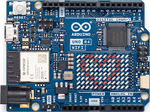
- Arduino UNO R4 WiFi (or Minima): This project exclusively requires the new R4 architecture, as the older Uno R3 does not possess the onboard pixel matrix. The UNO R4 WiFi features a 32-bit Cortex-M4 processor, native Wi-Fi, and a dense, embedded 96-LED red dot matrix built directly onto the board.
- Visuino program: Download Visuino
Step 2: Start Visuino, and Select the Arduino UNO R4 WiFi Board Type
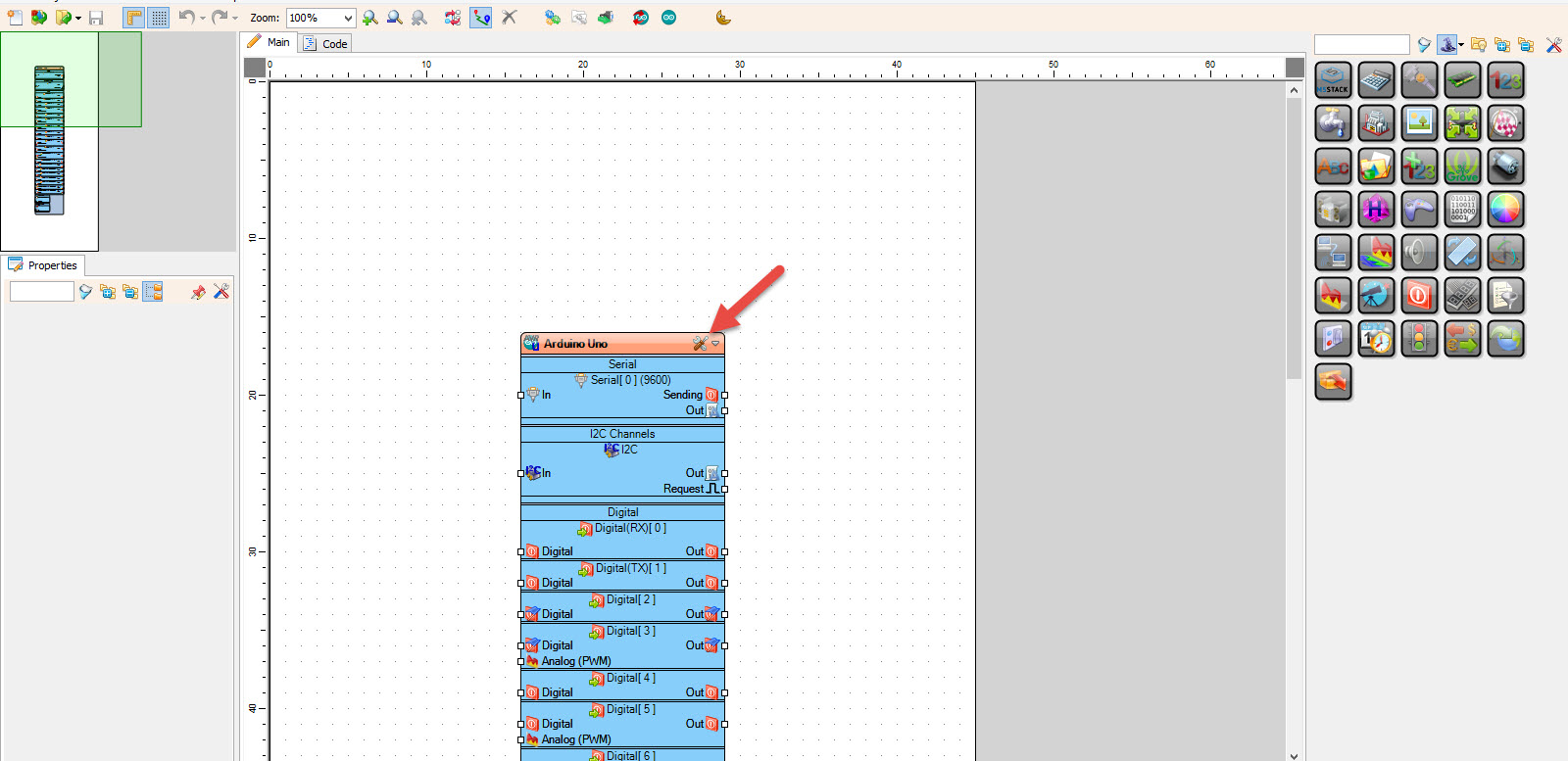
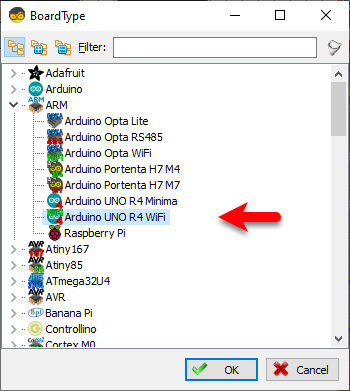
Click the "Tools" button on the Arduino component (Picture 1) in Visuino. When the dialog appears, select "Arduino UNO R4 WiFi" as shown in the image above.
Step 3: In Visuino Add Components
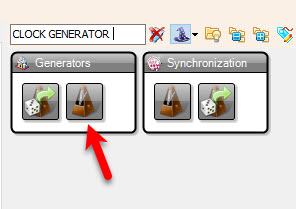
- Add "Clock Generator" component
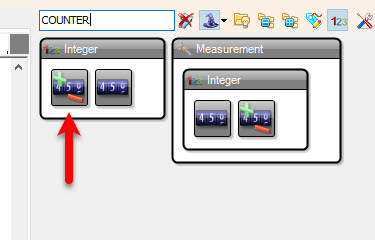
- Add "Up/Down Counter" component
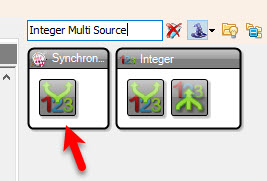
- Add "Integer Multi Source" component
Step 4: In Visuino Set Components
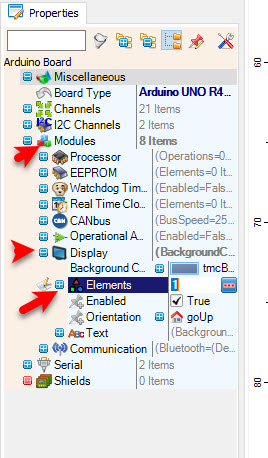
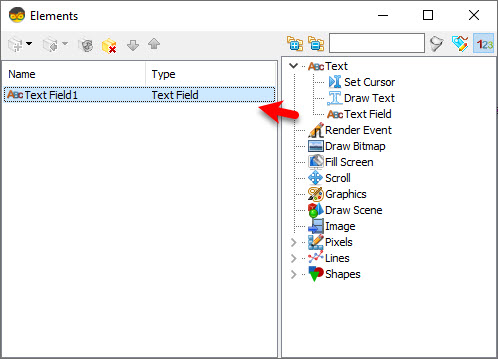
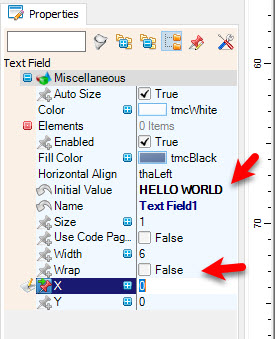
- Select the Arduino UNO R4 WiFi board. In the properties window, expand Modules > Display and select Elements. Click on the 3 dots button. In the Elements window, drag "Draw Text" to the left side. In the properties window, select "Text" and type
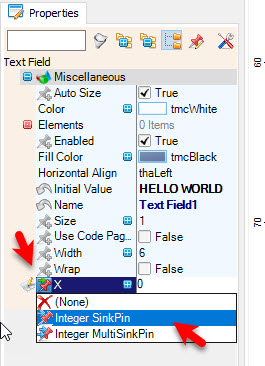
HELLO WORLD. Select "X", click on the pin icon, and select "Integer SinkPin". Also, set "Wrap" toFalse. This configures the text element for the onboard 12x8 LED matrix, which you can program visually without writing complex C++ code or binary hex arrays. - Close the Elements window.
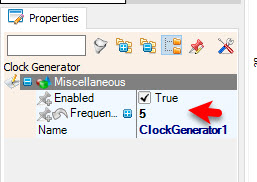
- Select "ClockGenerator1" and in the properties window set "Frequency" to 5. This controls the speed of the scrolling text; you can adjust this value according to your needs.
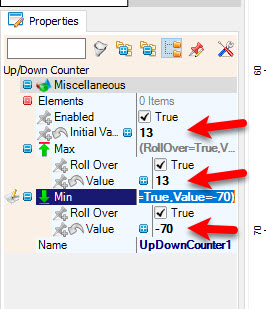
- Select "UpDownCounter1" and in the properties window set "Initial Value" to 13. This positions the text out of visibility on start.
- Select "UpDownCounter1" and in the properties window set "Max" > "Value" to 13. This means when the text finishes scrolling, it will reset to a position out of visibility.
- Select "UpDownCounter1" and in the properties window set "Min" > "Value" to -70. This determines the scroll length for the text. Experiment with this number according to your text length.
Step 5: In Visuino Connect Components
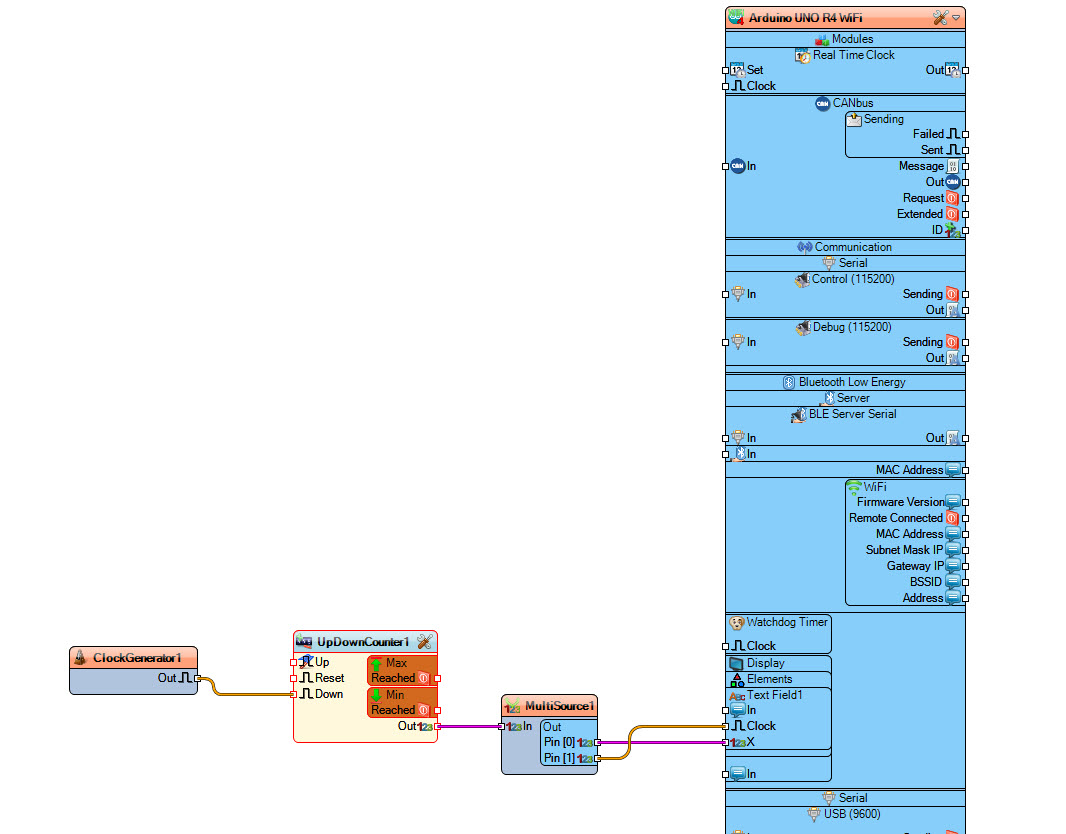
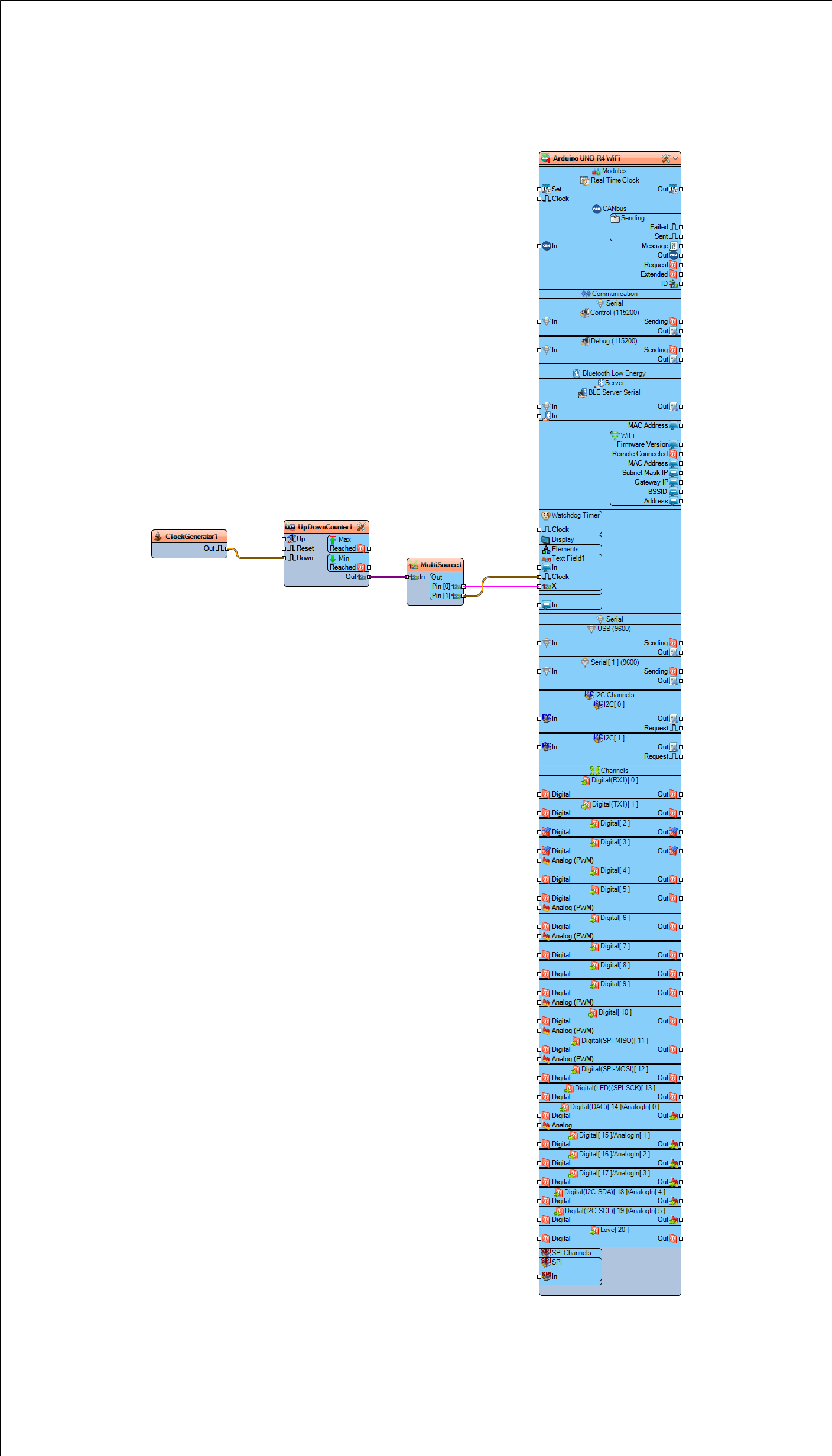
- Connect "ClockGenerator1" pin [Out] to "UpDownCounter1" pin [Down]
- Connect "UpDownCounter1" pin [Out] to "MultiSource1" pin [In]
- Connect "MultiSource1" pin [1] to Arduino UNO R4 WiFi > Display > "Draw Text1" pin [X]
- Connect "MultiSource1" pin [1] to Arduino UNO R4 WiFi > Display > "Draw Text1" pin [Clock]
Step 6: Generate, Compile, and Upload the Arduino Code
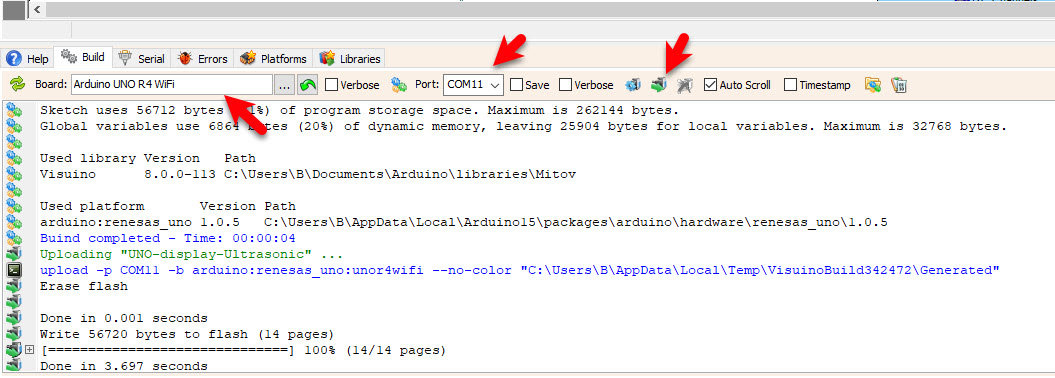
In Visuino, at the bottom click on the "Build" Tab, make sure the correct port is selected, then click on the "Compile/Build and Upload" button. Visuino will autonomously generate the complex C++ backend library structures for the LED matrix and upload the code over USB.
Step 7: Play
If you power the Arduino module, the LEDs on the Arduino Display will start to scroll the text.
Congratulations! You have completed your project with Visuino. Also attached is the Visuino project that I created for this tutorial, you can download it and open it in Visuino: https://www.visuino.com