A NeoPixel ring controlled by a DHT11 sensor and an Arduino Nano can be a fascinating project that combines temperature sensing with visual feedback. This article will guide you through the process of building such a system. This project, which we can call **Temperature Control NeoPixels**, turns an entire room into a display. By tying temperature data into color mapping, the room's ambient color can instinctively alert you to thermal changes.
Materials Needed
Arduino Nano
DHT11 Temperature and Humidity Sensor
Neo Pixel Ring
Jumper Wires
Get PCBs For Your Projects Manufactured

You must check out PCBWAY for ordering PCBs online for cheap!
You will also get a discount on shipping on your first order. Upload your Gerber files onto PCBWAY to get them manufactured with good quality and quick turnaround time. PCBWay now could provide a complete product solution, from design to enclosure production. Check out their online Gerber viewer function. With reward points, you can get free stuff from their gift shop. Also, check out this useful blog on PCBWay Plugin for KiCad from here. Using this plugin, you can directly order PCBs in just one click after completing your design in KiCad.
Step 1: Connecting the Hardware
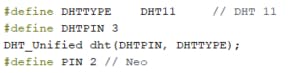
First, connect the DHT11 sensor and the Neo Pixel ring to the Arduino Nano. The DHT11 sensor can be connected to any digital pin on the Arduino Nano. The Neo Pixel ring should be connected to the D2 pin of the Arduino Nano.
Step 2: Installing the Libraries
You will need to install the DHT library and the Adafruit Neo Pixel library in your Arduino IDE. These libraries contain the necessary functions to interact with the DHT11 sensor and the Neo Pixel ring.
First Navigate to Sketch > Include Library > Manage Libraries...
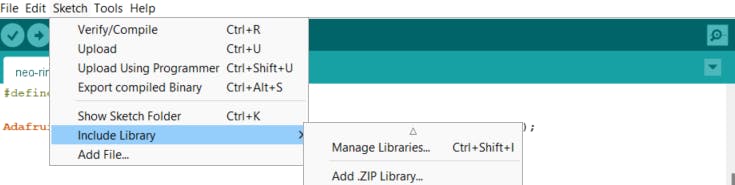
In the Library Manager, there is a search box. Type “DHT sensor library” into the search box.
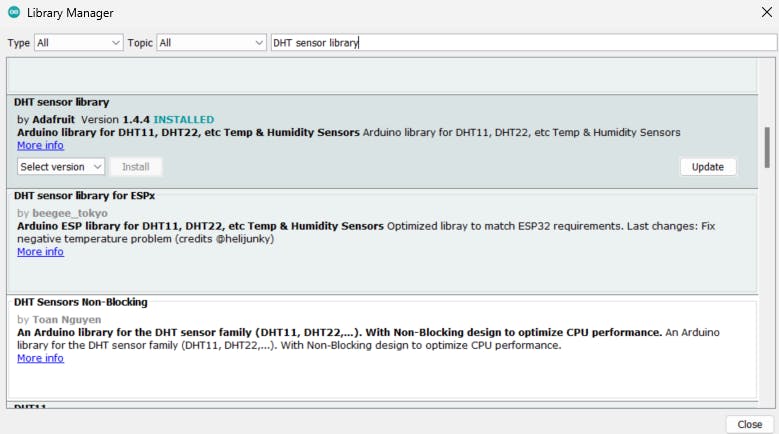
In the search results, find the library named “DHT sensor library” by Adafruit. Click on it, then click the “Install” button.
And that’s it! You’ve successfully installed the DHT11 sensor library in Arduino IDE. This library should now be available for inclusion in your sketches.
Step 3: Programming the Arduino
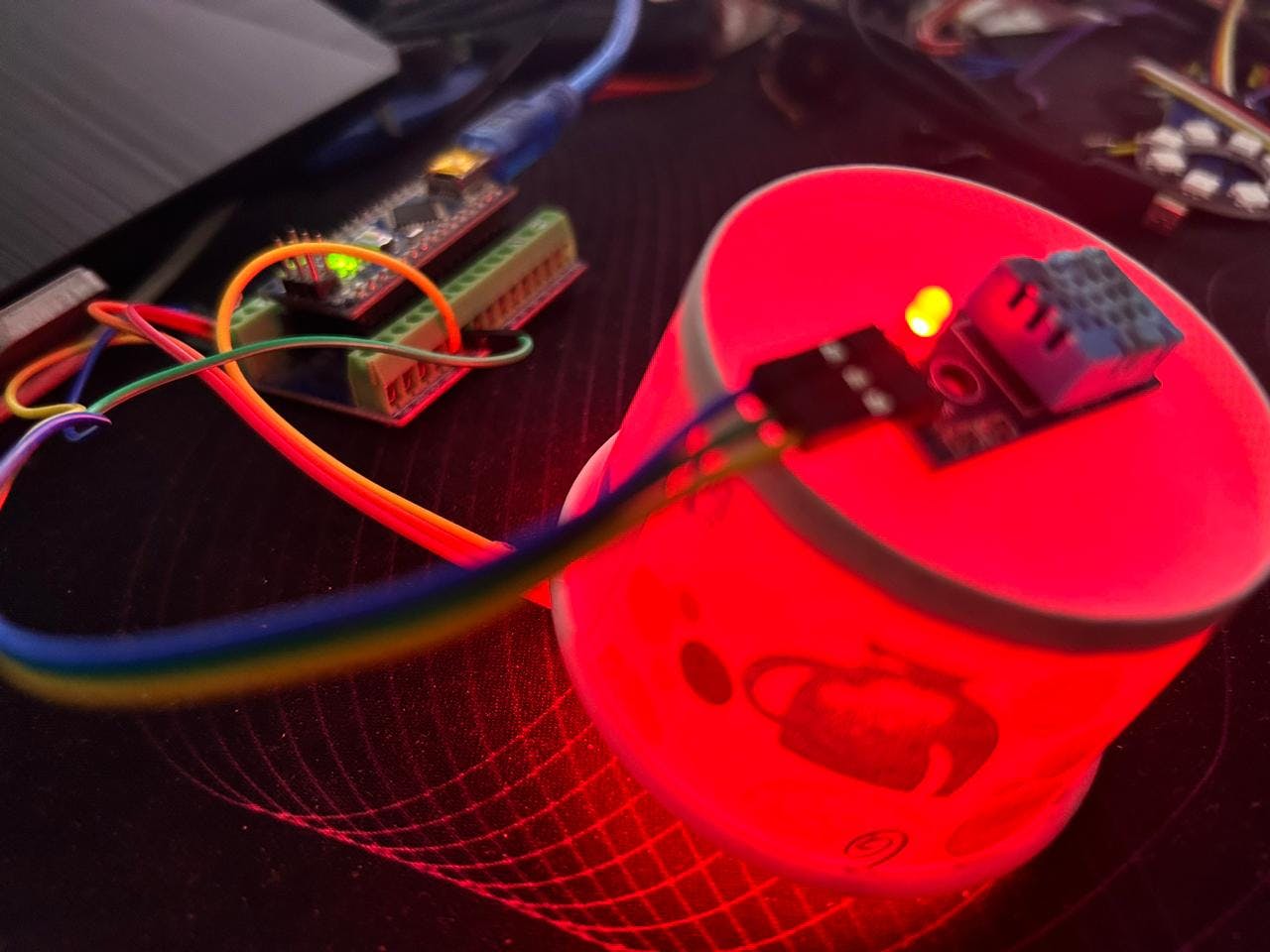
The next step is to program the Arduino Nano. The program should read the temperature from the DHT11 sensor and change the color of the Neo Pixel ring based on the temperature.
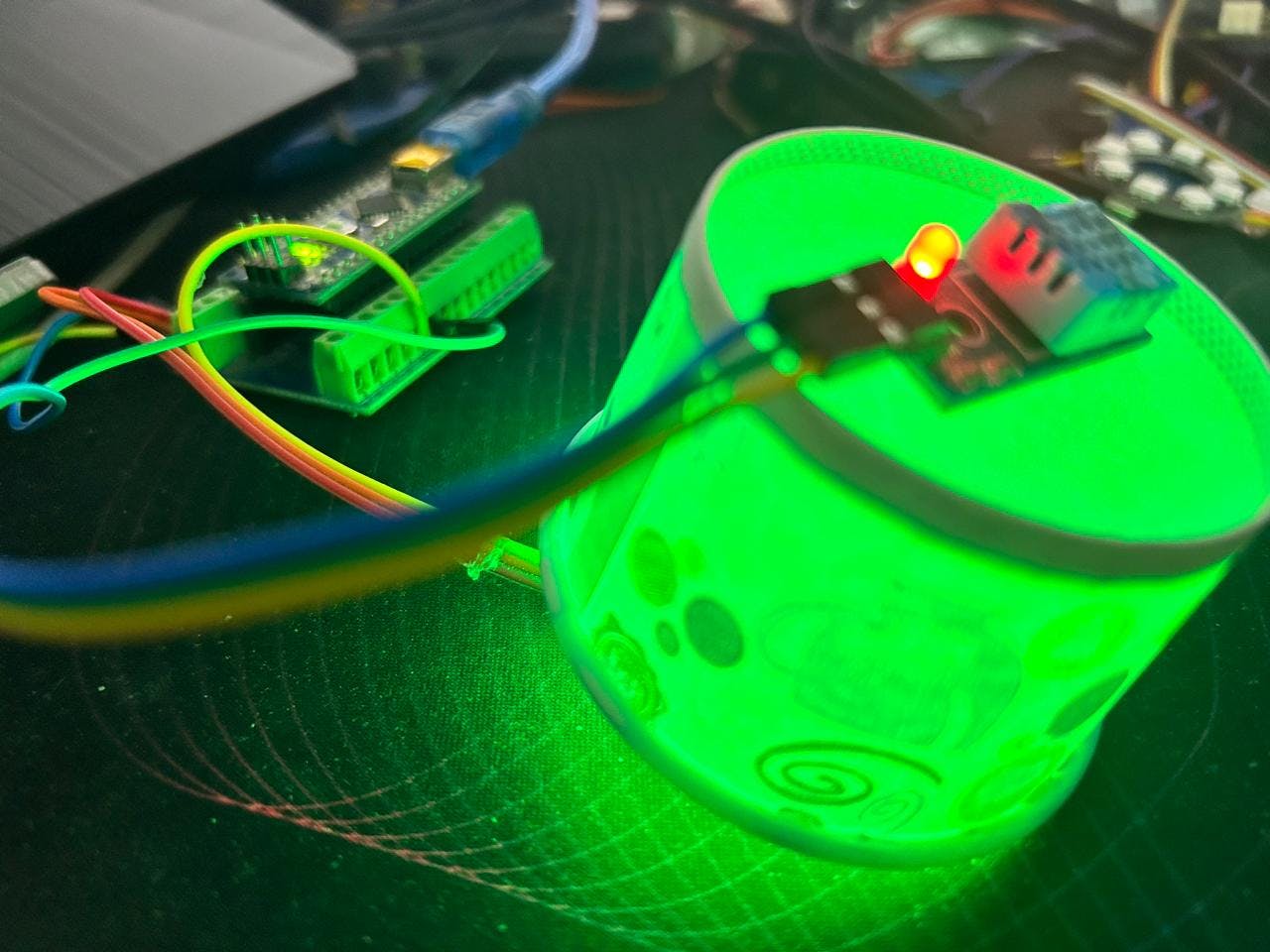
For example, you could program the Neo Pixel ring to display a blue color when the temperature is below a certain threshold.
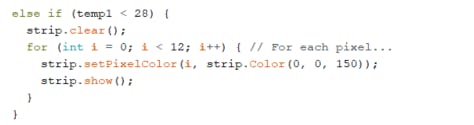
A green color when the temperature is within a comfortable range,

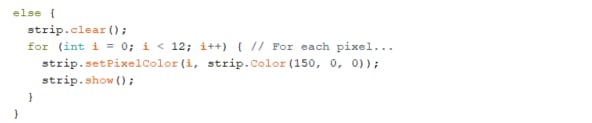
and a red color when the temperature is above a certain threshold.
EXPANDED TECHNICAL DETAILS
While the DHT11 is a simple digital sensor, more advanced implementations can use components like an **NTC 10K Thermistor** for faster, analog feedback. The core principle involves mapping a numerical temperature value to a visual color output.
Interpolating Numerical Data to HSV Color: Instead of using raw RGB values, a more elegant solution uses the HSV (Hue, Saturation, Value) color spectrum. You define functional parameters: for example, 15°C (59°F) could be Pure Cold Blue and 32°C (90°F) could be Searing Red. Using the `map()` function, you can translate a temperature reading into a hue value. In libraries like FastLED, Blue is often Hue 160 and Red is Hue 0. An ambient temperature of 23°C would map to a peaceful Green glow (Hue ~80). The Arduino can then flood the LEDs with this color using commands like `fill_solid()`.
Room-Scale Construction Considerations: For larger installations using WS2812B NeoPixel strips, power management is critical. A massive 5V power supply is required, as the current draw for a fully lit strip can easily exceed 10+ Amps. Never power a large NeoPixel strip directly from the Arduino Nano's 5V pin, as it will overload the onboard voltage regulator.
Step 4: Testing the System
After programming the Arduino Nano, it’s time to test the system. Power up the Arduino and observe the color of the Neo Pixel ring. Try changing the temperature around the DHT11 sensor (for example, by blowing hot or cold air onto the sensor) and see if the color of the Neo Pixel ring changes accordingly.
#include <Adafruit_NeoPixel.h>
#include <Adafruit_Sensor.h>
#include <DHT.h>
#include <DHT_U.h>
#define DHTTYPE DHT11 // DHT 11
#define DHTPIN 3
DHT_Unified dht(DHTPIN, DHTTYPE);
#define PIN 2 // Neo
Adafruit_NeoPixel strip = Adafruit_NeoPixel(8, PIN, NEO_GRB + NEO_KHZ800);
void setup() {
Serial.begin(115200);
dht.begin();
sensor_t sensor;
strip.begin();
strip.setBrightness(100);
strip.show();
}
void loop() {
sensors_event_t event;
dht.temperature().getEvent(&event);
Serial.print(F("Temperature: "));
float temp1 = event.temperature;
Serial.print(temp1);
Serial.println(F("°C"));
dht.humidity().getEvent(&event);
Serial.print(F("Humidity: "));
float hum1 = event.relative_humidity;
Serial.print(hum1);
Serial.println(F("%"));
if (temp1 >= 28 && temp1 < 31) {
strip.clear(); // Set all pixel colors to 'off'
for (int i = 0; i < 12; i++) { // For each pixel...
strip.setPixelColor(i, strip.Color(0, 150, 0));
strip.show();
}
}
else if (temp1 < 28) {
strip.clear();
for (int i = 0; i < 12; i++) { // For each pixel...
strip.setPixelColor(i, strip.Color(0, 0, 150));
strip.show();
}
}
else {
strip.clear();
for (int i = 0; i < 12; i++) { // For each pixel...
strip.setPixelColor(i, strip.Color(150, 0, 0));
strip.show();
}
}
}
Conclusion
Building a DHT11-controlled Neo Pixel ring with an Arduino Nano is a fun and educational project combining temperature sensing and visual feedback. With this system, you can visually monitor the temperature in a room and get a sense of whether the temperature is within a comfortable range. It demonstrates the core concept of mapping sensor data to intuitive visual outputs, a foundation that can be expanded with more advanced sensors and color interpolation techniques for room-scale ambient displays.