Intermediate
โปรเจกต์ การทำ Cricket Shot Recognition โดยใช้ Arduino UNO EK R4 Wi-Fi, ADXL345 และ Edge Impulse
การวิเคราะห์ Batsman ขณะ batting โดยใช้ ADXL345, Arduino UNO EK R4 Wi-Fi และ Edge Impulse

การวิเคราะห์ Batsman ขณะ batting โดยใช้ ADXL345, Arduino UNO EK R4 Wi-Fi และ Edge Impulse
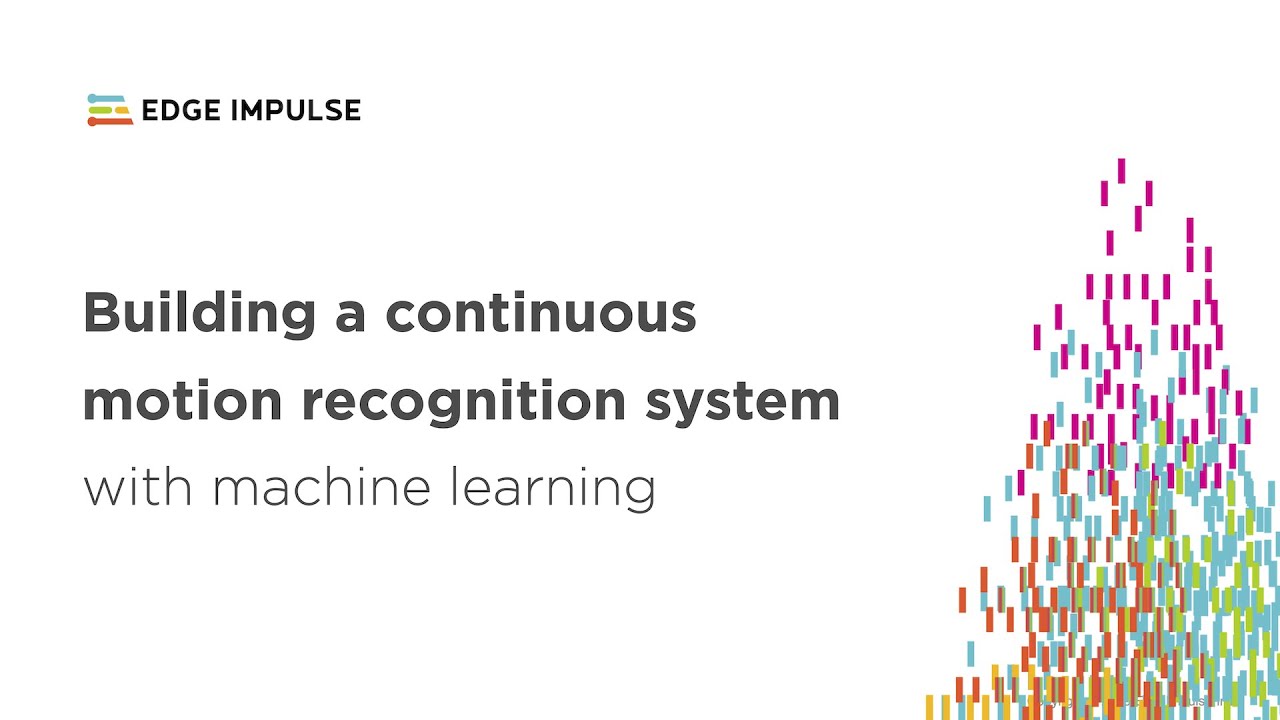
▶ กดเพื่อดูวิดีโอสาธิตโปรเจกต์
Project Supporter Team
โพสต์โดย
Cricket Shot Recognition โดยใช้ Arduino UNO R4 Wi-Fi, ADXL345 และ Edge Impulse
เอกสารนี้แสดงขั้นตอนการทำงานทั้งหมดในการสร้างระบบจำแนกท่าทางการตีคริกเก็ต (Cricket shot recognition)
โดยใช้ Arduino UNO R4 Wi-Fi ร่วมกับ ADXL345 Accelerometer และ Edge Impulse Studio โปรเจกต์นี้ประกอบด้วยการเก็บข้อมูลจาก Accelerometer, การฝึกสอน Machine Learning model และ
การนำ Model ที่ฝึกเสร็จแล้วกลับมาติดตั้งบน Arduino เพื่อทำการจำแนกท่าทาง (Shot classification) แบบ Real-time
ท่าทางการตีคริกเก็ตที่ใช้ในโปรเจกต์นี้:
- Cover Drive
- Straight Drive
- Pull Shot
ขั้นตอนที่ 1: อุปกรณ์ Hardware ที่ต้องใช้
- Arduino UNO R4 WiFi
- ADXL345 Accelerometer (I2C)
- สาย Jumper
- Breadboard (ไม่บังคับ)
- สาย USB Type-C
ขั้นตอนที่ 2: ซอฟต์แวร์ที่ต้องใช้
- Arduino IDE (เวอร์ชันล่าสุด)
- บัญชี Edge Impulse Studio (สมัครฟรี)
- Edge Impulse CLI tools (ต้องติดตั้ง Node.js)
- Adafruit ADXL345 library
ขั้นตอนที่ 3: การต่อวงจร ADXL345
เชื่อมต่อ Sensor ADXL345 เข้ากับ Arduino UNO R4 WiFi ดังนี้:
VCC → 3.3V
GND → GND
SDA → SDA (A4)
SCL → SCL (A5)
CS → 3.3V (ไม่บังคับ สำหรับโหมด I2C)
SDO → ปล่อยว่าง หรือต่อ GND

ขั้นตอนที่ 4: เตรียม IDE ให้พร้อมสำหรับ Sensor
วิธีการติดตั้ง Sensor Libraries ใน Arduino IDE
เปิด Arduino IDE
ไปที่ Tools → Manage Libraries… และติดตั้ง: Adafruit ADXL345 Unified, Adafruit Unified
Sensor
(หากคุณใช้ LSM6DSO หรือ MPU6050 แทน ให้ติดตั้ง SparkFun LSM6DSO, Adafruit LSM6DS
หรือ MPU6050 ตามความเหมาะสม)
ขั้นตอนที่ 5: Arduino Sketch สำหรับการเก็บข้อมูล
อัปโหลด Sketch นี้ไปยัง Arduino UNO R4 Wi-Fi ของคุณ ซึ่งจะส่งข้อมูล Accelerometer ในรูปแบบ CSV
(x,y,z) ที่ความถี่ประมาณ 18 Hz สำหรับ Edge Impulse
#include <Wire.h>
#include <Adafruit_ADXL345_U.h>
Adafruit_ADXL345_Unified accel =
Adafruit_ADXL345_Unified(12345);
void setup() {
Serial.begin(115200);
if (!accel.begin()) {
Serial.println("No ADXL345 detected");
while (1);
}
accel.setRange(ADXL345_RANGE_4_G);
}
void loop() {
sensors_event_t e;
accel.getEvent(&e);
Serial.print(e.acceleration.x);
Serial.print(",");
Serial.print(e.acceleration.y);
Serial.print(",");
Serial.println(e.acceleration.z);
delay(55); // ~18 Hz
}

ขั้นตอนที่ 6: การเชื่อมต่อกับ Edge Impulse
1. ปิด Arduino Serial Monitor
2. รันคำสั่ง:
edge-impulse-data-forwarder --frequency 18
3. ใส่ชื่อแกน (axis): accX, accY, accZ
4. ตั้งชื่ออุปกรณ์: Arduino-Cricket-Board
5. ยืนยันการเชื่อมต่อใน Edge Impulse Studio ภายใต้เมนู 'Devices'


ขั้นตอนที่ 7: การเก็บข้อมูล (Data Collection)
ใน Edge Impulse Studio → Data acquisition:
- Device: Arduino-Cricket-Board
- Sensor: Accelerometer (3 axes)
- Sample length: 2000 ms (2 วินาที)
- Frequency: 18 Hz
บันทึกตัวอย่างอย่างน้อย 40 ตัวอย่างต่อหนึ่งหมวดหมู่ (Class):
- Cover Drive
- Straight Drive
- Pull Shot

ตัวอย่างการเก็บข้อมูล
Cover Drive
Device: Arduino-Cricket-Board
Label: Cover Drive
Sensor: Sensor with 3 axes (accX, accY, accZ)
Sample length: 10000ms
Frequency: 18 Hz
ตัวอย่างข้อมูลดิบ (Raw Data):
accX -0.32
accY 9.61
accZ -0.12
Straight Drive
Device: Arduino-Cricket-Board
Label: Straight Drive
Sensor: Sensor with 3 axes (accX, accY, accZ)
Sample length: 10000ms
Frequency: 18 Hz
ตัวอย่างข้อมูลดิบ (Raw Data):
accX 1.24
accY 8.93
accZ -0.42
Pull Shot
Device: Arduino-Cricket-Board
Label: Pull Shot
Sensor: Sensor with 3 axes (accX, accY, accZ)
Sample length: 10000 ms
Frequency: 18 Hz
ตัวอย่างข้อมูลดิบ (Raw Data):
accX 2.01
accY 7.84
accZ -0.63

ขั้นตอนที่ 8: การออกแบบ Impulse
ไปที่ Create impulse:
Input block: Time series data (3 axes)
Window size: 1000 ms, Window increase (stride): 200 ms, เปิดการใช้งาน: Axes, Magnitude
(ไม่บังคับ), frequency 18
Processing block: Spectral analysis (สำหรับ Spectral Features ของการเคลื่อนที่), Window size: 1000
ms, Window increase (stride): 200 ms, เปิดการใช้งาน: Axes, Magnitude (ไม่บังคับ), ใช้ค่าเริ่มต้นทั้งหมดในตอนแรก
Learning block: Classification (Keras)
คลิก Save impulse

การสร้าง Feature (Generate features):
ไปที่ Spectral analysis คลิก Save parameters จากนั้นคลิก Generate features สำหรับชุดข้อมูลฝึกสอน (Training set)

ฝึกสอน Model ขนาดเล็ก
ไปที่ Classifier (Keras) และใช้การตั้งค่าแบบประหยัดพื้นที่ เช่น:
Neural network: 1–2 dense layers (เช่น 60 → 30), ReLU
Epochs: 40–60
Learning rate: 0.001–0.005
Batch size: 32
Data split: 80/20 (train/test)
บันทึกและทำการฝึกสอนข้อมูล (Save and train)


ประเมินและตรวจสอบ Model testing ด้วยชุดข้อมูลที่แยกไว้ (Holdout set)
ตรวจสอบ Confusion matrix; หากข้อมูลแต่ละท่าทางทับซ้อนกัน ให้เก็บข้อมูลที่หลากหลายขึ้น หรือปรับ
Spectral parameters (เช่น window size / noise floor)
ขั้นตอนที่ 9: การนำไปใช้ (Deployment) บน Arduino
ไปที่ Deployment:
เลือก Arduino library (C++ library ก็สามารถใช้ได้เช่นกัน)
เปิดใช้งาน EON Compiler (ถ้ามี) เพื่อลดขนาดของ Model

ดาวน์โหลดไฟล์ .zip จากนั้นใน Arduino IDE ไปที่: Sketch → Include Library → Add .ZIP Library… วิธีนี้จะ
เพิ่มตัวอย่างเช่น Static buffer และ Continuous ภายใต้ File → Examples →
YourProjectName – Edge Impulse. Inference sketch สำหรับ Arduino UNO R4 WiFi +
ADXL345
ขั้นตอนที่ 10: Arduino Inference Sketch
#include <Wire.h>
#include <Adafruit_ADXL345_Unified.h>
#include <your_project_inference.h> // แทนที่ด้วยชื่อ Edge Impulse
header ของคุณ
Adafruit_ADXL345_Unified accel =
Adafruit_ADXL345_Unified(12345);
static bool debug_nn = false;
void setup() {
Serial.begin(115200);
while (!Serial) {}
if (!accel.begin()) {
Serial.println("ERROR: ADXL345 not detected");
while (1);
}
accel.setRange(ADXL345_RANGE_4_G);
}
void loop() {
float buffer[EI_CLASSIFIER_DSP_INPUT_FRAME_SIZE] = {0};
for (size_t ix = 0; ix < EI_CLASSIFIER_DSP_INPUT_FRAME_SIZE; ix +=
3) {
uint64_t next_tick = micros() + (EI_CLASSIFIER_INTERVAL_MS *
1000);
sensors_event_t e;
accel.getEvent(&e);
buffer[ix + 0] = e.acceleration.x;
buffer[ix + 1] = e.acceleration.y;
buffer[ix + 2] = e.acceleration.z;
int32_t wait = (int32_t)(next_tick - micros());
if (wait > 0) delayMicroseconds(wait);
}
signal_t signal;
int err = numpy::signal_from_buffer(buffer,
EI_CLASSIFIER_DSP_INPUT_FRAME_SIZE, &signal);
if (err != 0) return;
ei_impulse_result_t result = {0};
EI_IMPULSE_ERROR res = run_classifier(&signal, &result,
debug_nn);
if (res != EI_IMPULSE_OK) return;
for (size_t ix = 0; ix < EI_CLASSIFIER_LABEL_COUNT; ix++) {
ei_printf("%s: %.3f ", result.classification[ix].label,
result.classification[ix].value);
}
#if EI_CLASSIFIER_HAS_ANOMALY == 1
ei_printf("anomaly: %.3f", result.anomaly);
#endif
ei_printf("\n");
}

คำแนะนำ (Tips):
ตั้งค่า EI_CLASSIFIER_INTERVAL_MS ให้สัมพันธ์กับความถี่ของ Data forwarder ของคุณ
(เช่น 100 Hz → 10 ms). โดย Edge Impulse library จะกำหนดค่าคงที่นี้ให้โดยอัตโนมัติจาก
Impulse ของคุณ
หากคุณต้องการการตรวจจับแบบต่อเนื่อง (Sliding window) ให้เริ่มจากตัวอย่าง Continuous
ที่รวมอยู่ในไลบรารีของ EI และเปลี่ยนส่วนการอ่านค่าจาก ADXL345 เข้าไปแทน
เราจะเพิ่มวิดีโอสอนเร็วๆ นี้;
ระหว่างนี้ สามารถติดตามได้ที่ - https://www.youtube.com/@RobuInlabs
และหากคุณยังมีข้อสงสัย คุณสามารถรับชมวิดีโอนี้จาก Edge Impulse:
https://www.youtube.com/watch?v=FseGCn-oBA0&t=46
สนับสนุนเพื่อรับ Source Code หรือแอปพลิเคชันสำหรับโปรเจกต์นี้
ประเมิน Project
เอาฟอร์มยาวออกจากท้ายหน้า Project แล้ว เหลือเป็นปุ่มให้กดไปกรอกหน้าเดียว ตัวใหญ่ เว้นบรรทัดเยอะ อ่านง่ายกว่า
รีวิวจากคนใช้งานจริง
ถ้าเคยสั่งงาน เคยอ่านหน้านี้แล้วได้ประโยชน์ หรือมีข้อเสนอแนะ ฝากรีวิวไว้ได้เลย
ยังไม่มีรีวิวบนหน้านี้ ถ้าเคยใช้งานหรือมีข้อเสนอแนะ เขียนเป็นคนแรกได้เลย